Style & CSS Management
Now change the design of your previously created homepage or your header & footer.
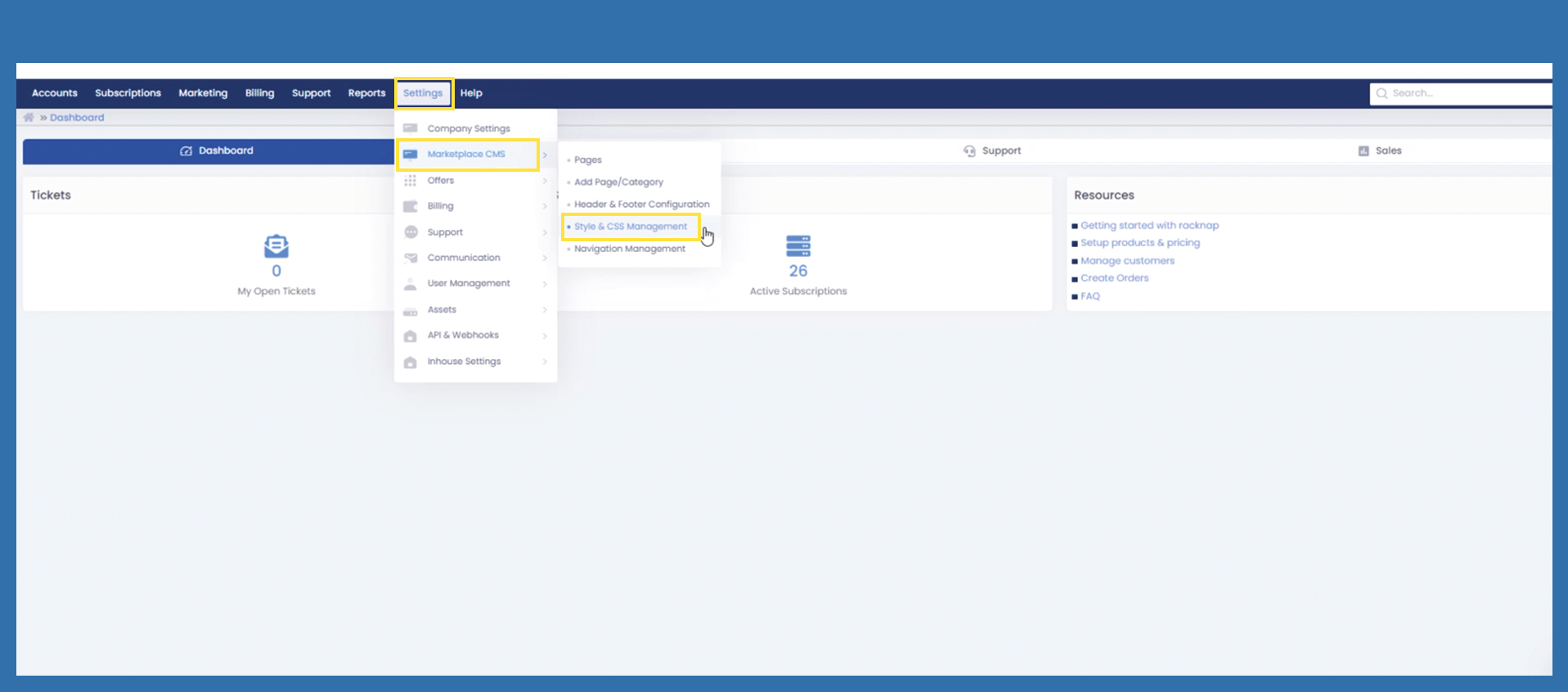
Use the following path, to come to the settings:
Settings > Marketplace CMS > Style & CSS Management
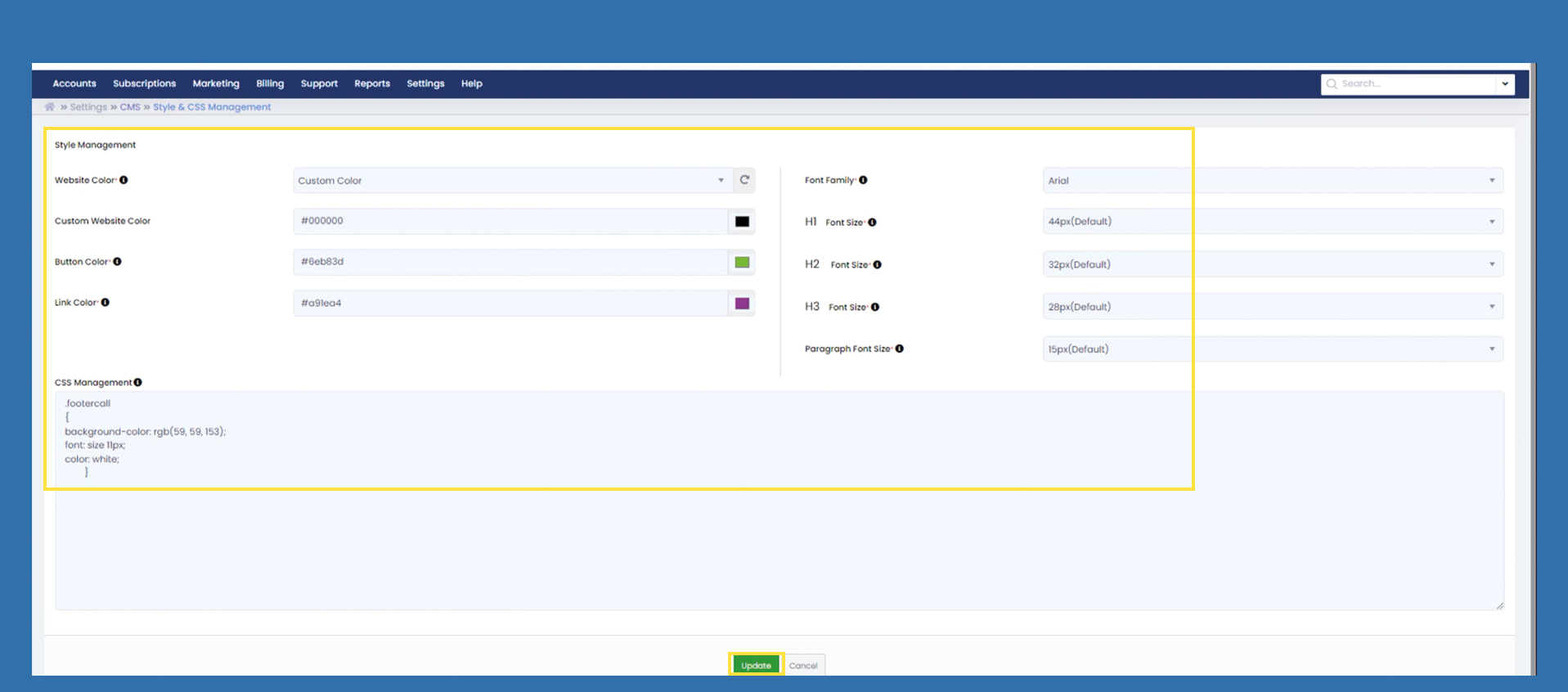
Stylemanagement
Website Color: You can choose between blue, green and red. As soon as one of the colors is selected, individual elements on all pages are changed to the selected color. If you do not like the preset color, you can select the Custom Color field via dropdown. It now opens, the field Custom Website Color.
Custom Website Color: Select a color by entering the hex code directly in the field or by clicking on the box with a preset color and making your color selection there using the RGB color palette.
Link Color: You can change the color of all existing links on your pages. Select a color by entering the hex code directly in the field or by clicking on the box with a preset color and making your color selection there using the RGB color palette.
Font Family: Change your font here via dropdown. There are several fonts available. The change applies to all pages.
H1 Font Size: All headings that have been defined as H1 can be set to the desired size here as required.
H2 Font Size: All headings that have been defined as H1 can be set to the desired size here as required.
H3 Font Size: All headings that have been defined as H1 can be set to the desired size here as required.
Paragraph Font Size: Here you can change the size of the font accordingly. There are a few sizes available
CSS Management: CSS stands for Cascading Style Sheets, which translates as “graded style sheets”. It is a design and formatting language that is used to determine the appearance of HTML documents. It is therefore about design or style, not the content of a website. With CSS, users can, for example, define fonts, colors, lines, heights and widths on a website.
If the above changes are not sufficient, you are welcome to use the following file to create your CSS file and assign corresponding classes for the individual areas of your homepage.
Click on Update to save your changes.