Procedure
End customer has received his access data by email after registration!
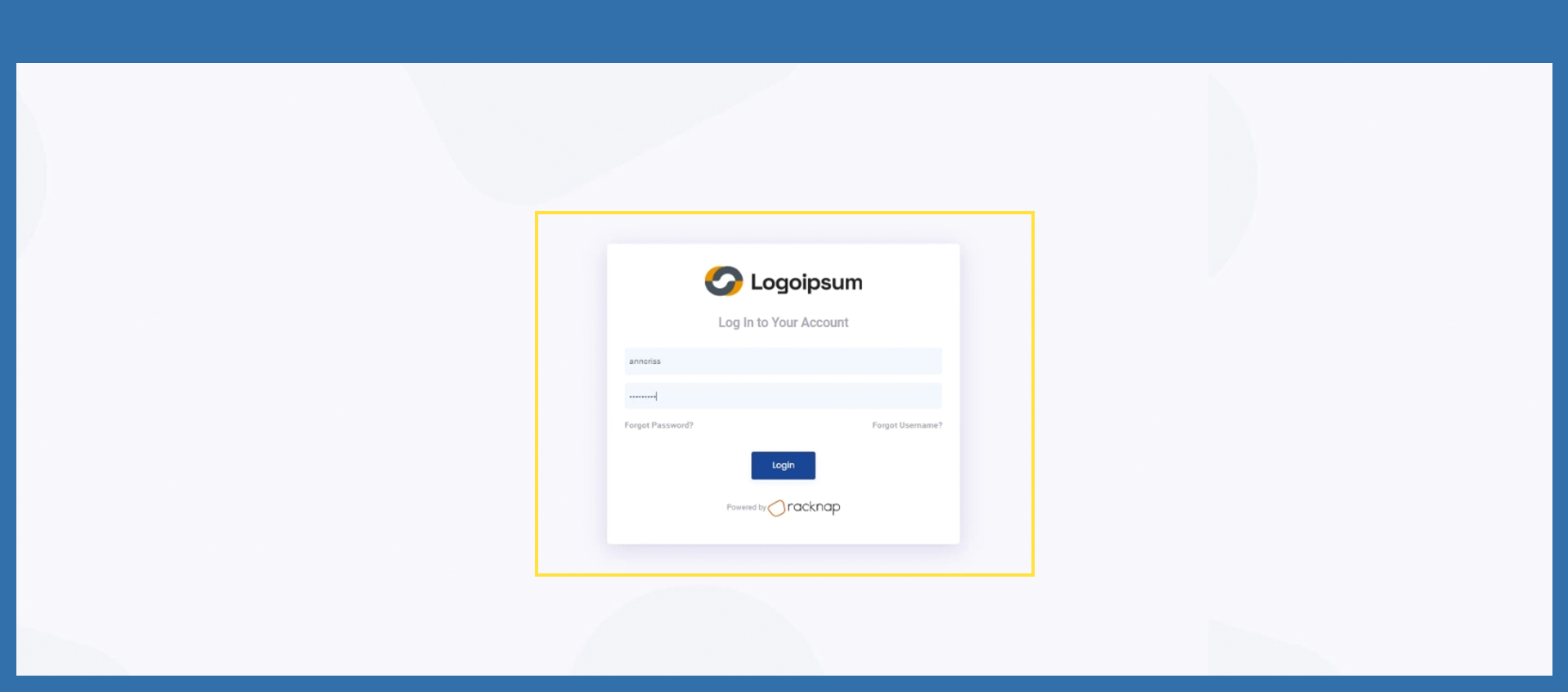
End customer must go to Login page and sign in with corresponding credentials and confirm with Sign In. For log in the username is required.
With click on the Sign In Button, end customer will receive an email with an One Time Password (For future reverence, One Time Password will be shortened to OTP.) End customer should check the email postbox, copy the code and enter the code to the corresponding field. After that, end customer needs to click on verify.
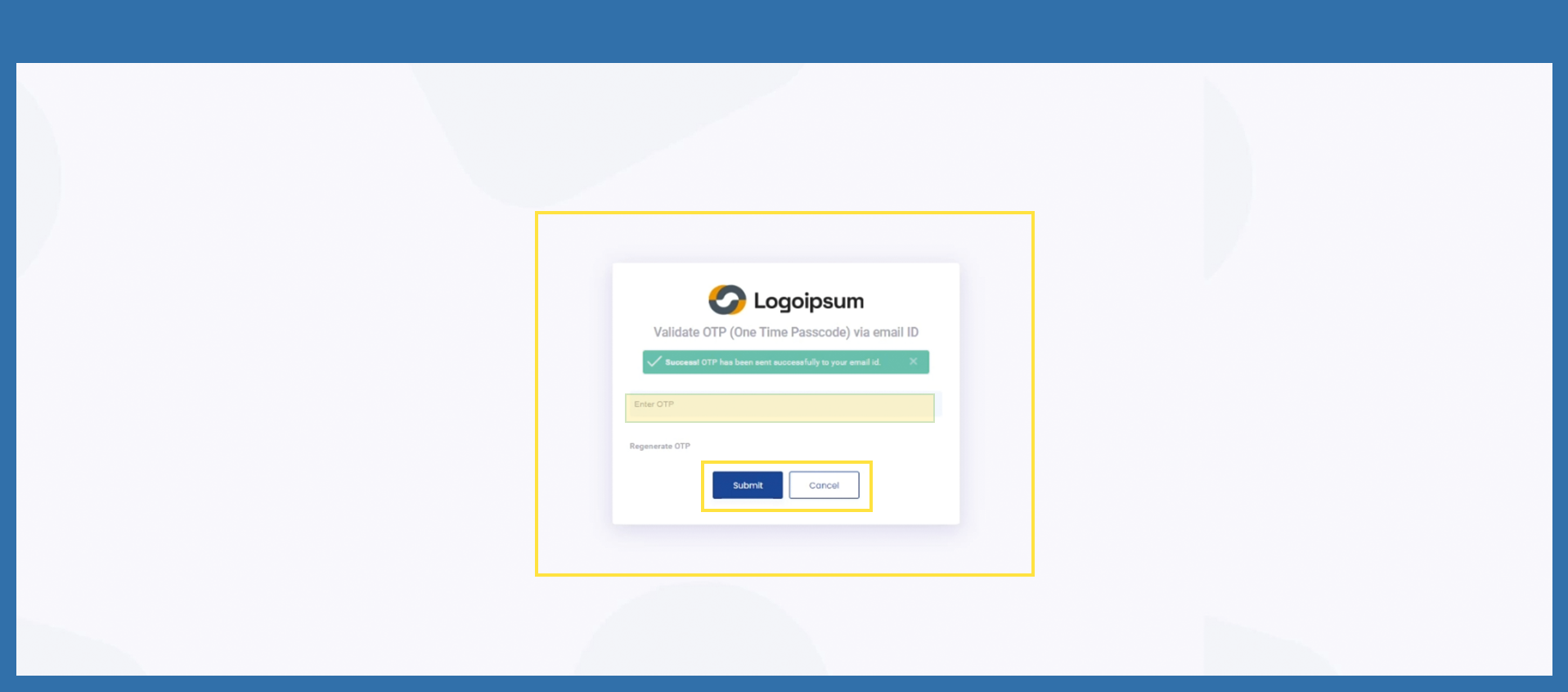
End customer did not receive the code by e-mail? Please ask end customer to check the SPAM emails in his postbox. If there is no code either, end customer needs to click on Re-generate OTP and you will receive a new code.
Did the end customer enter the code incorrectly several times? The end customer will receive an error massage. Tell him to try it again later.
End customer waited to long, to enter the code? It is expired now. Please the end customer to click on Re-generate OTP. End customer will receive a new code.
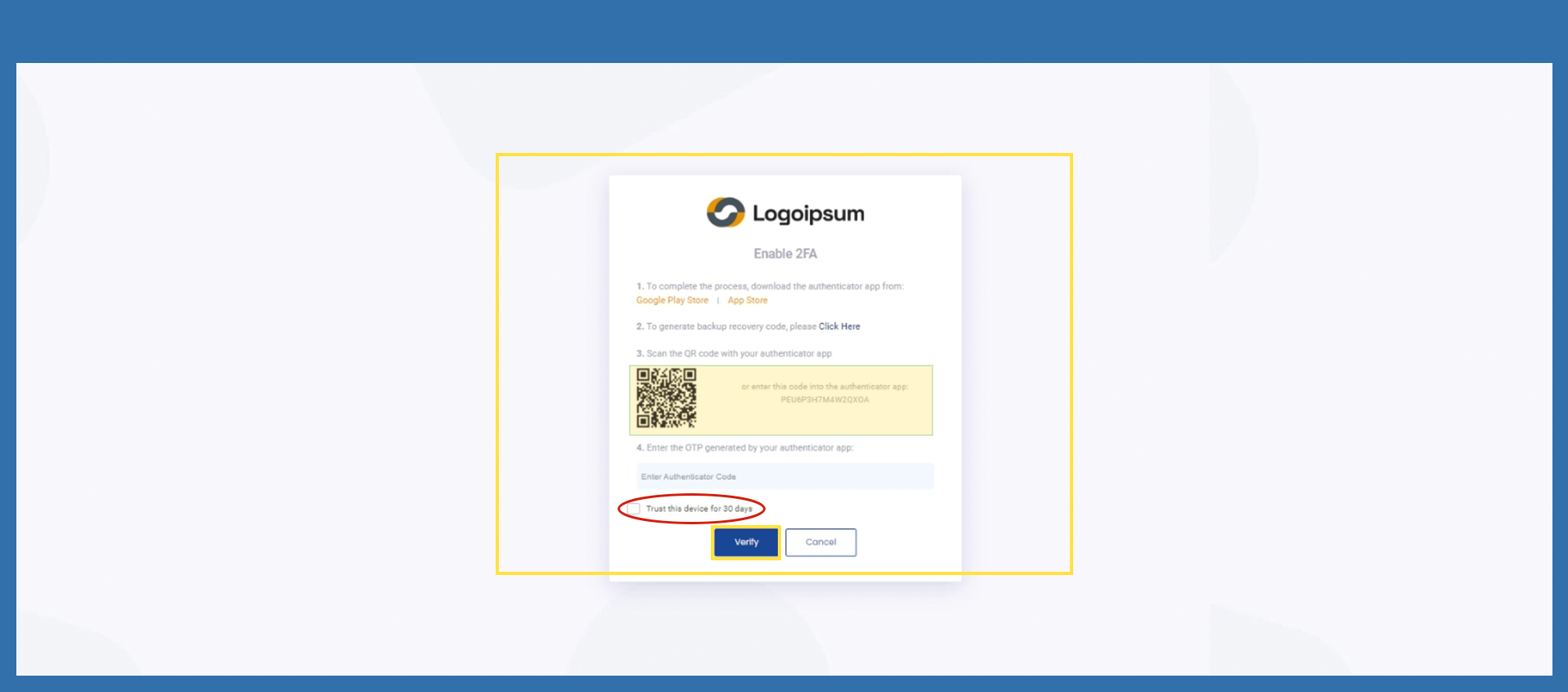
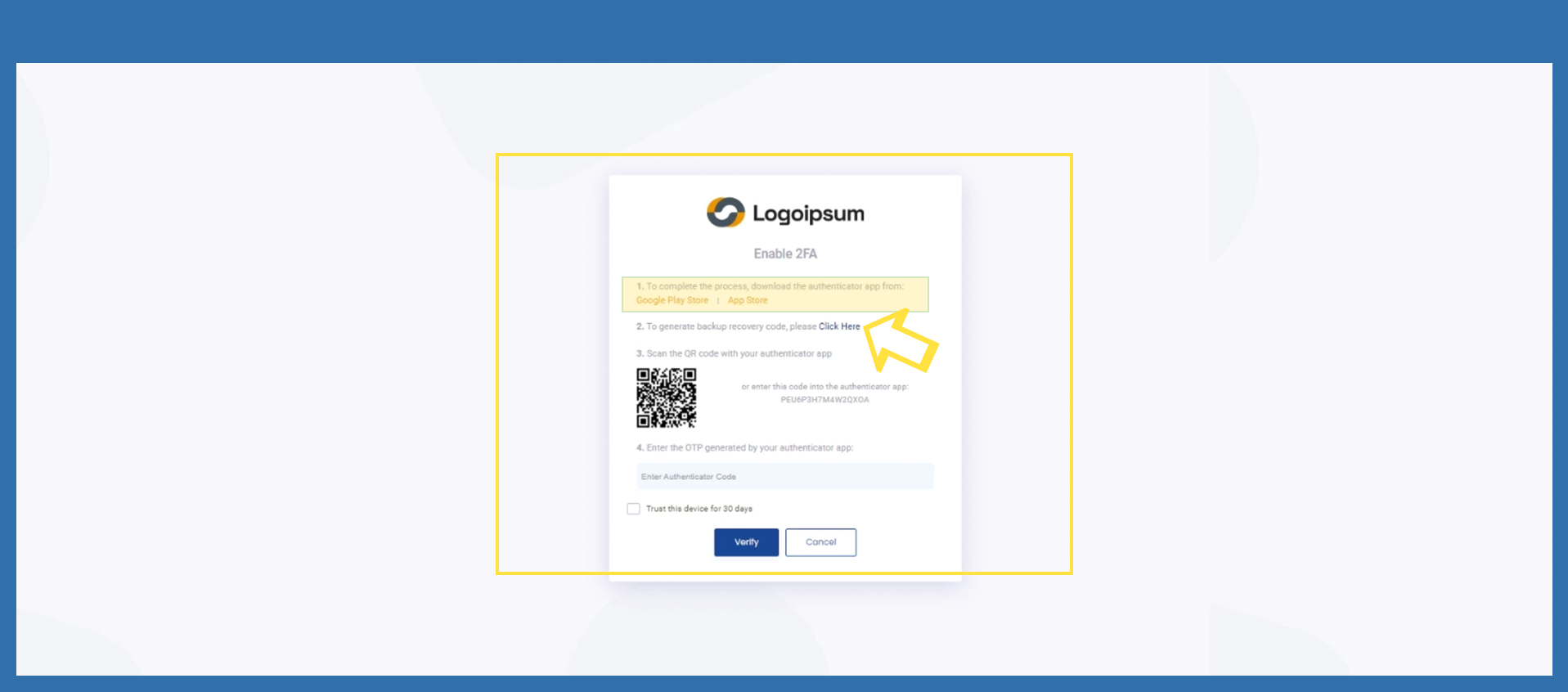
The end customer now reached the multi factor authentication process. The end customer needs to download the multi factor authenticator app, if end customer doesn´t posses it. Therefore end customer needs to click on the links leading to the app stores, where the app is accessible for free.
After download the App, end customer has to download or copy recovery codes. Therefore the end customer must click on Click Here.
Here, end customer will receive instructions about what to do. Ask the end customer to download or copy the shown codes by click on the corresponding symbols below the codes. Additionally, the end customer will also receive an email with the codes. Then the pop up can be closed.

The end customer needs to open authenticator app and search for the function to add new authentication processes. End customer can scan the QR-Code or enter the code manually.
The App will then generate a numeric code, which end customer must enter in the corresponding field.
If end customer wants to skip the he authentication process for the next 30 days, please the end customer to mark the checkbox for Trust this device for 30 days. Then, end customer needs to click on Verify Now.