
End Customers My Billing > Place New Order
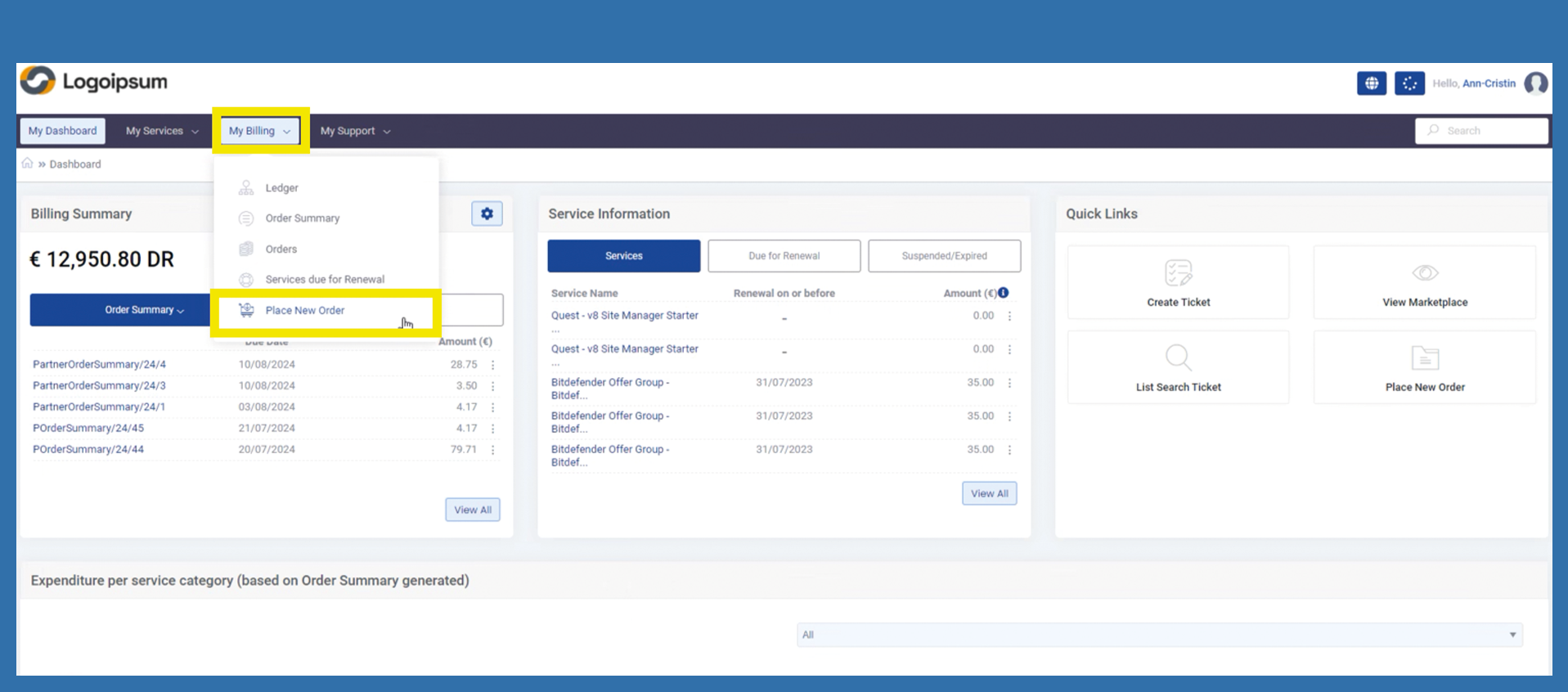
There are several ways for your end customer to create a new order. One of the options is to use the following path:
My Billing > Place New Order
The shopping cart opens and displays the items available for purchase for the end customer.
A search function is available on the left-hand side, which can be used by end customer to search for corresponding items.
The corresponding item can then be added to the shopping cart by clicking the Add to Cart button. In the following popup, the end customer must confirm with Ok.
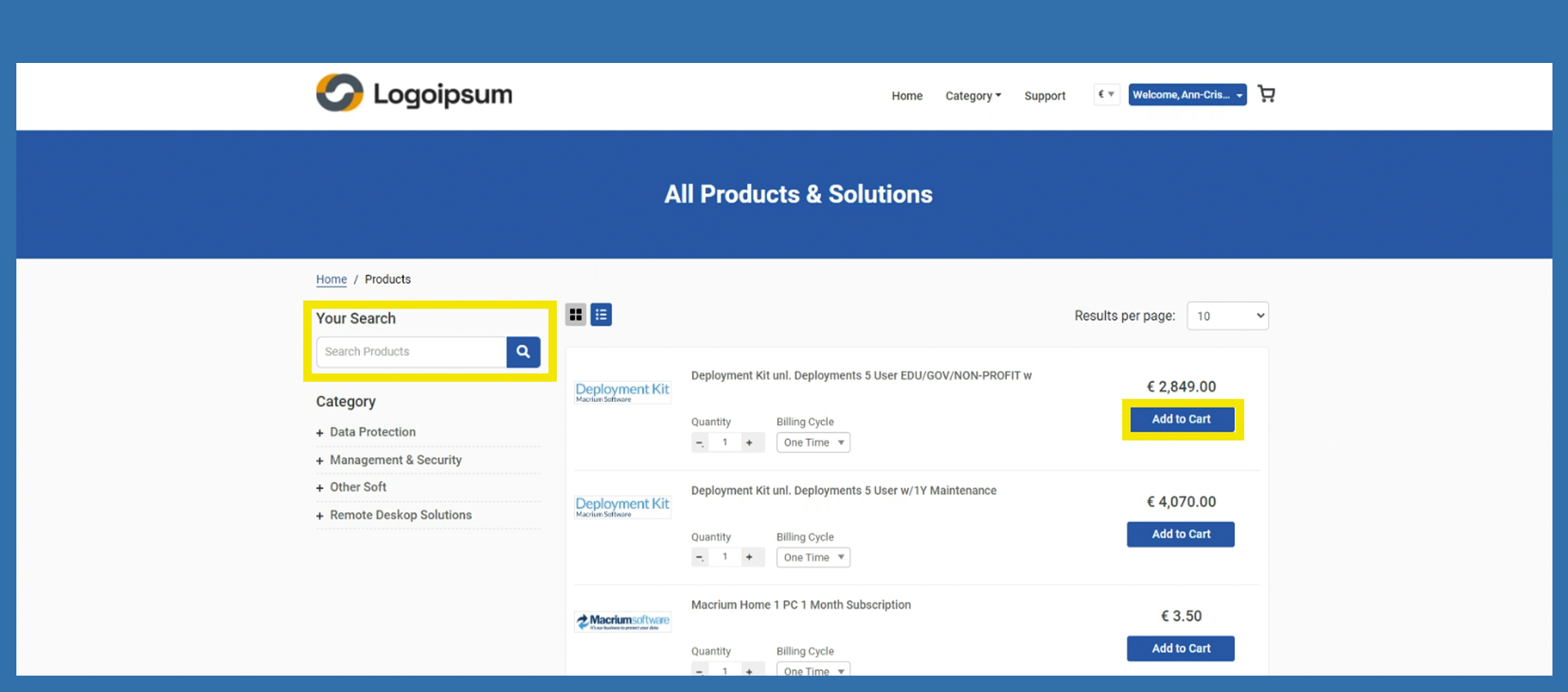
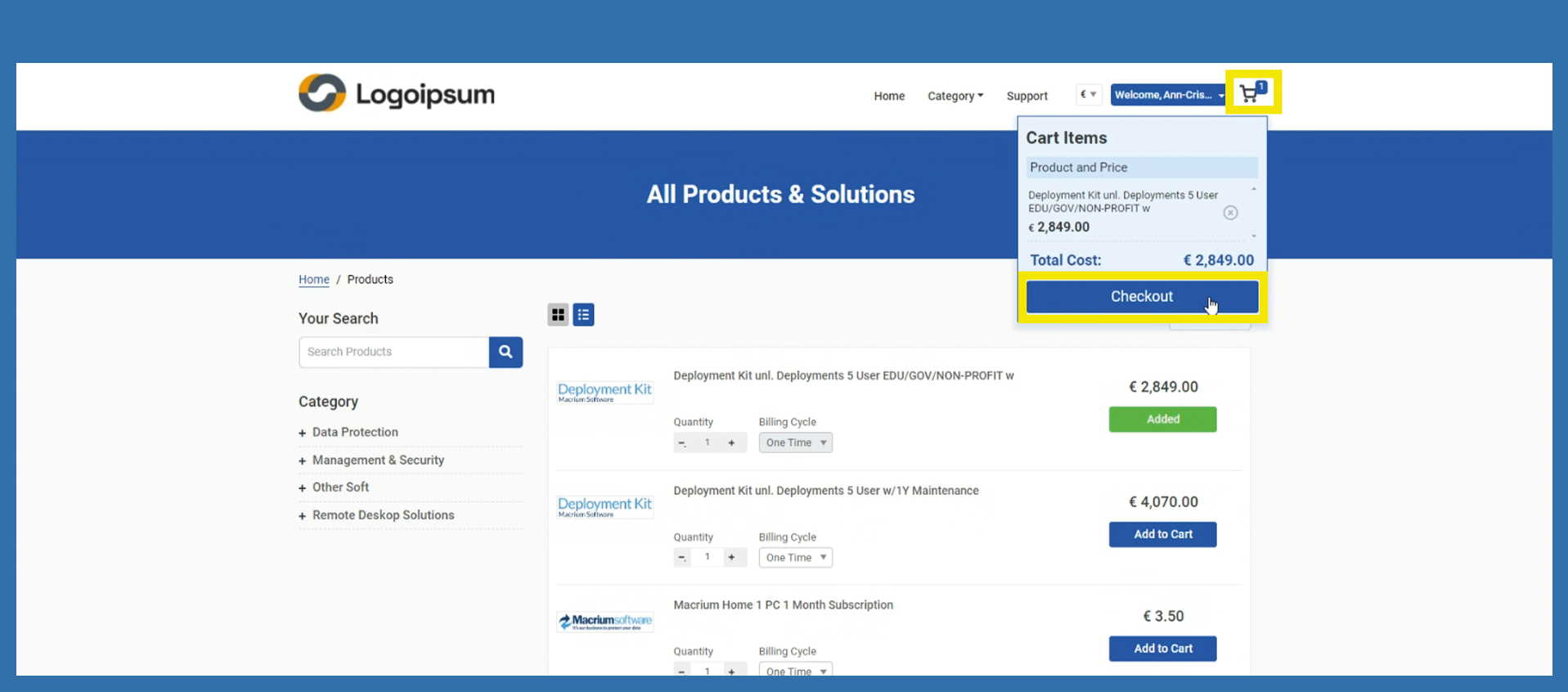
Now end customer must click on the shopping cart at the top right to go to the shopping cart. A popup will open. Previously selected items are displayed. Now end customer must click on Checkout to continue.
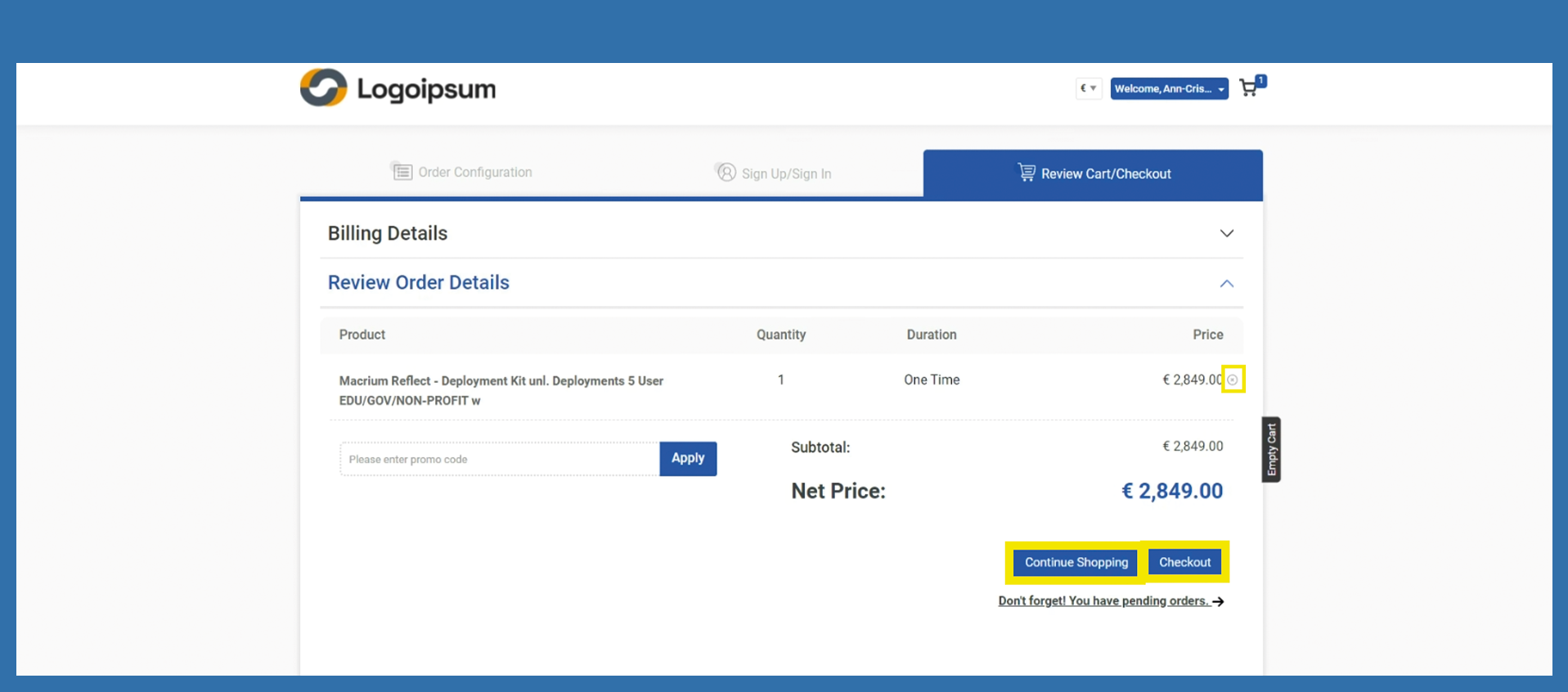
The end customer is shown the order details. Here he has the opportunity to check his order again.
If he has selected the wrong item, he can remove the item here with the small x after the amount and confirm the deletion with Ok in the subsequent pop-up.
If he wants to add more items, he can do so by pressing the Continune Shopping button. He will then be redirected to the article page from where he can purchase further articles.
If the order is correct and complete, the end customer can now click on Checkout.
The customer is now in the order summary, which is actually no longer a summary. The customer must select Order Summary again. In the following popup, he must confirm again with Ok. He will then be forwarded automatically.
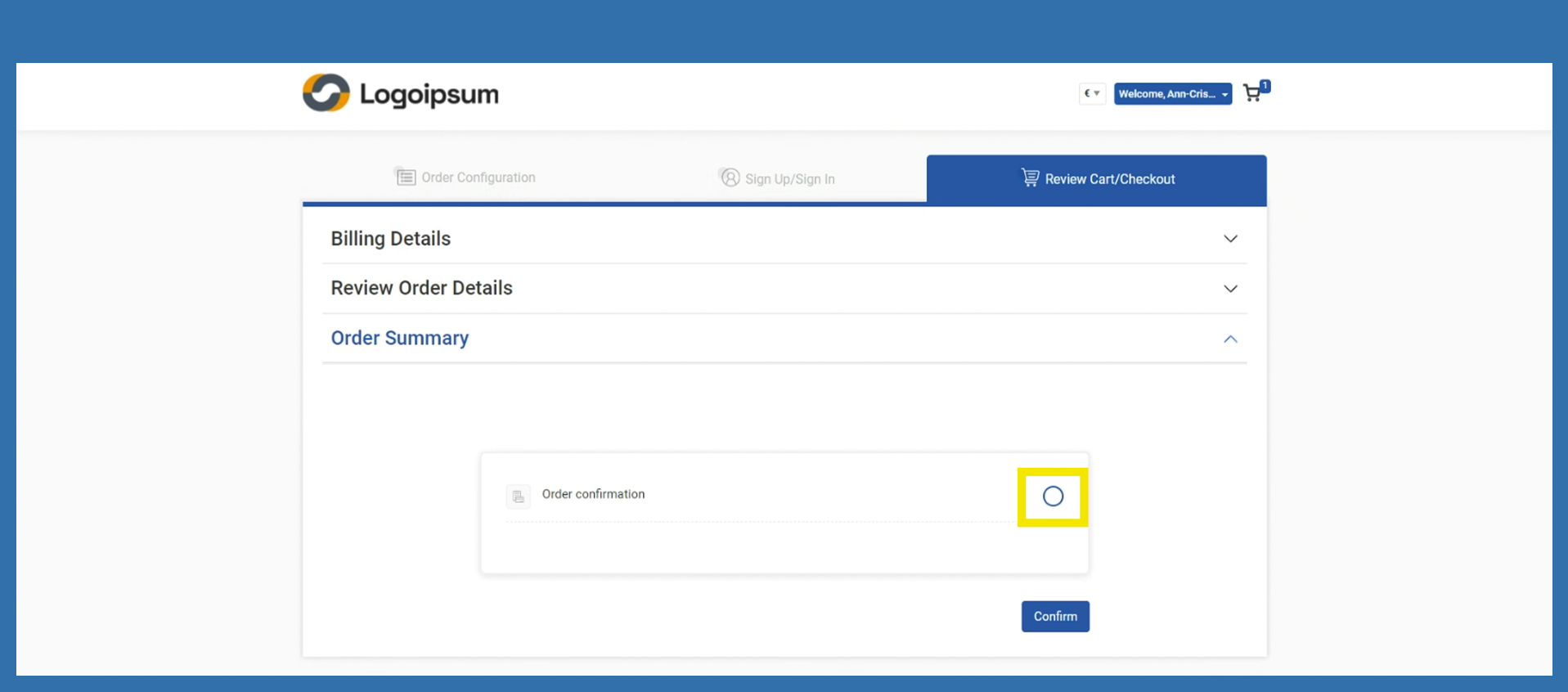
As soon as a message appears that the order was successful, the order has been transmitted to the partner.
