
Billing > Orders > Edit End Customer Order
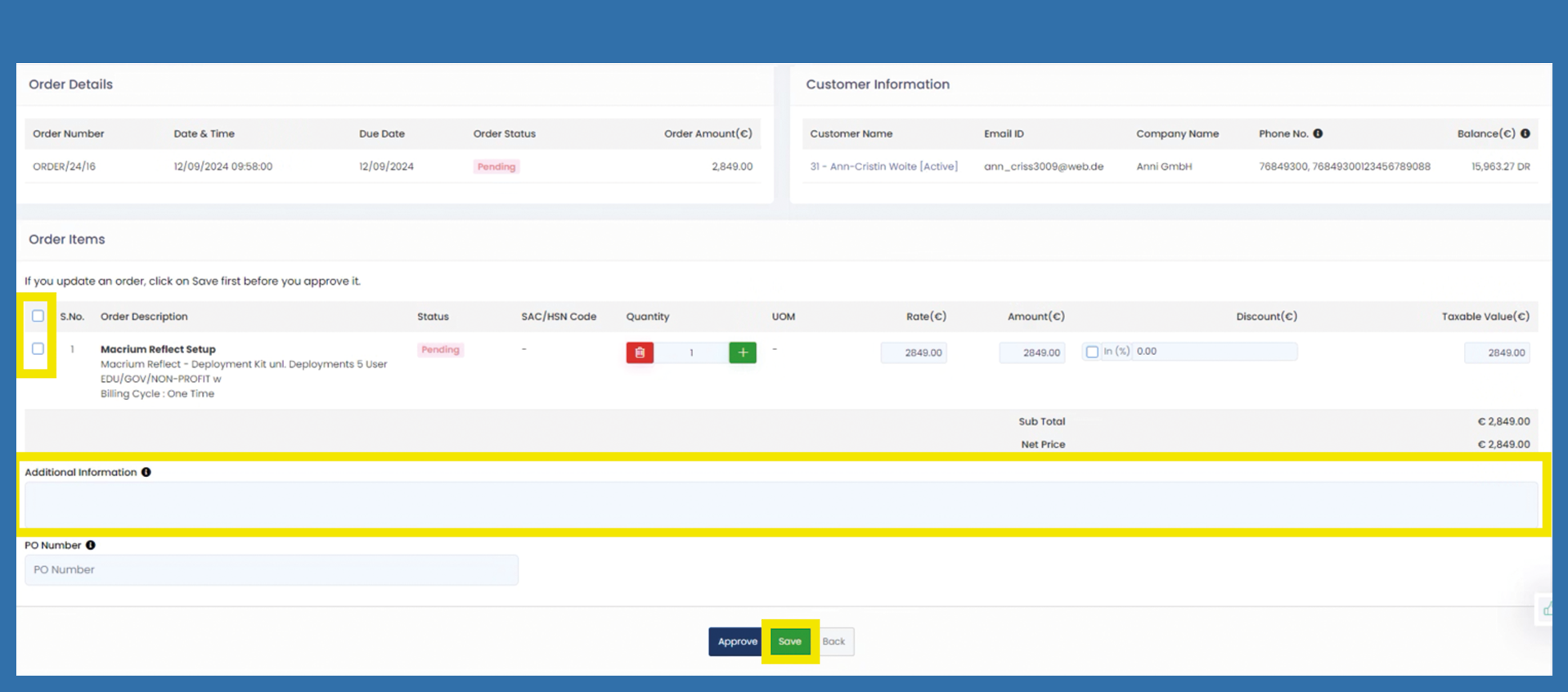
You have the following options of editing an end customer's order before approval.
- Change Quantity
- Adjust rate or amount
- Grant discount
- Add additional information
- PO number transfer
Use the following path to access the respective order:
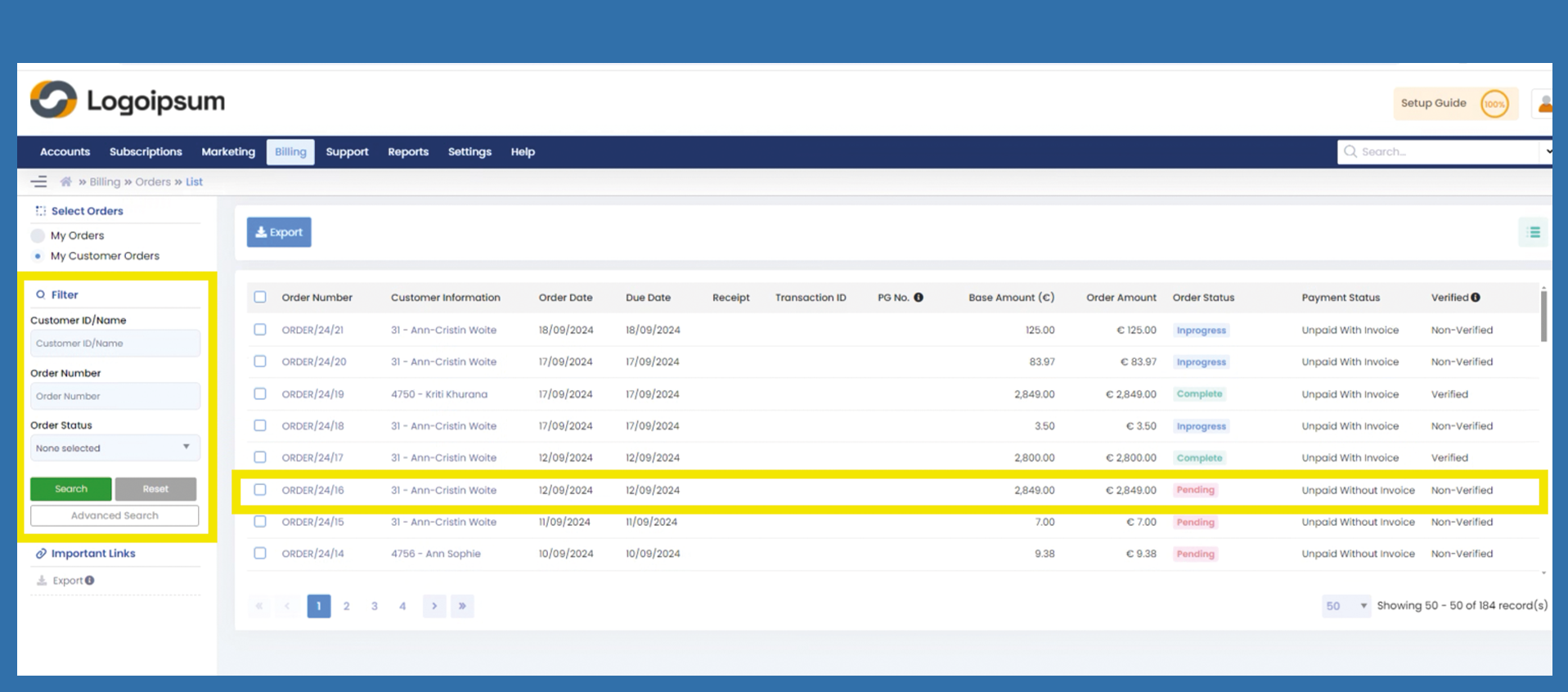
Billing > Orders > List

Search for the corresponding order for which changes are to be made. Use the filter function on the left-hand side.
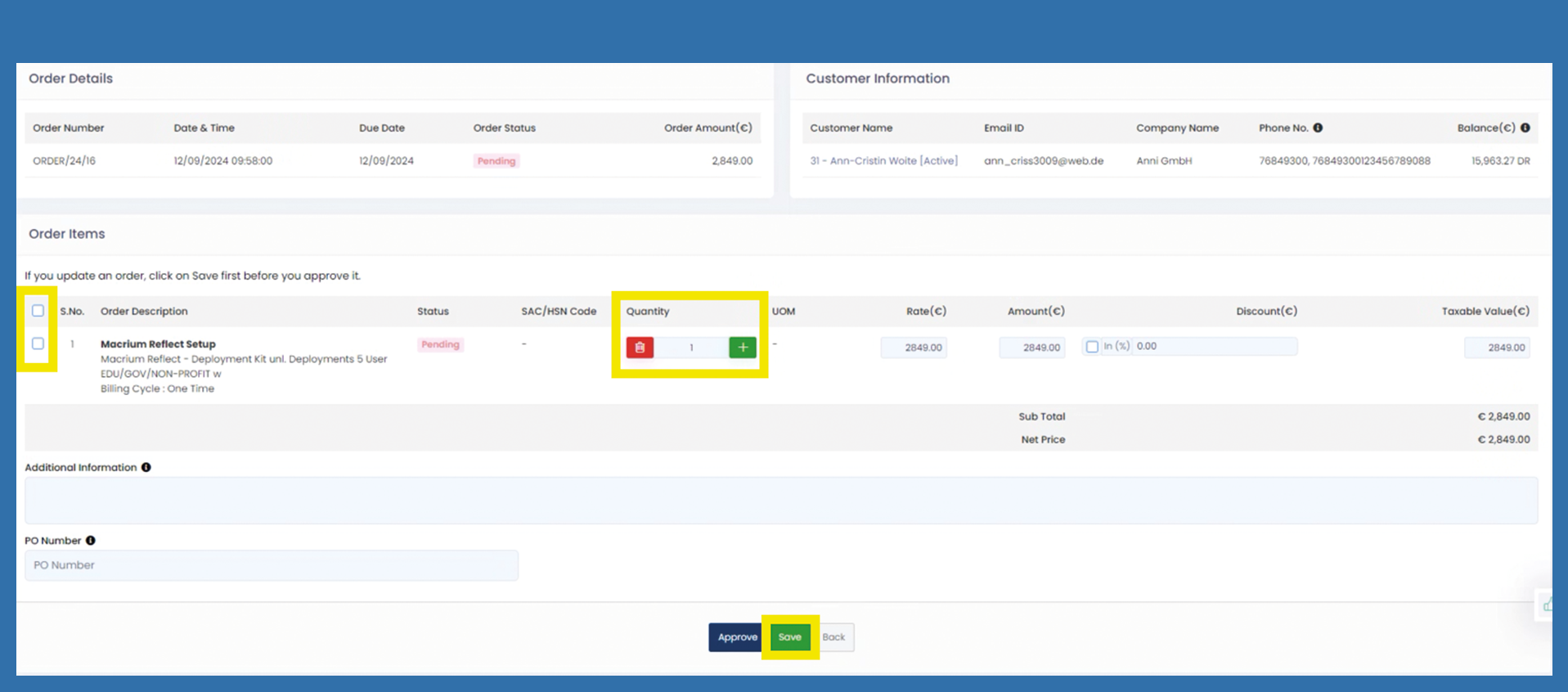
Change Quantity
If you want to increase the quantity, click on the plus right next to the quantity in the Quantity area. If you want to reduce the number, you can click on the trash can to the left of the number. You must then select the item by ticking the box in front of the item description and then click Save. The changes are then visible in the end customer portal.
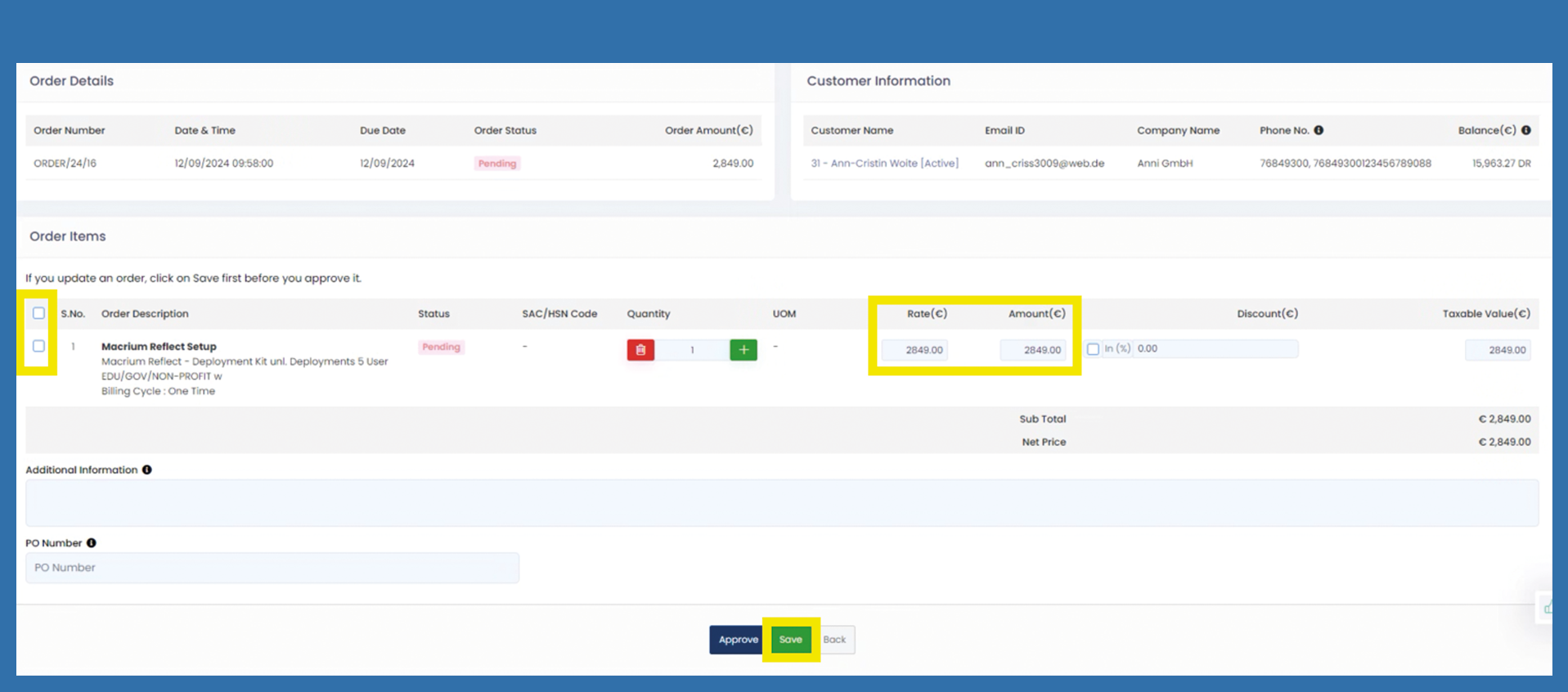
Adjust Rate or Amount
Both the unit price in the Rate field and the total amount in the Amount field can still be changed manually. Enter the corresponding value. If you only enter the unit price, the total amount changes. If you change the total amount, the unit price will also be adjusted. You must then select the item by ticking the box in front of the item description and then click Save. The changes are then visible in the end customer portal.
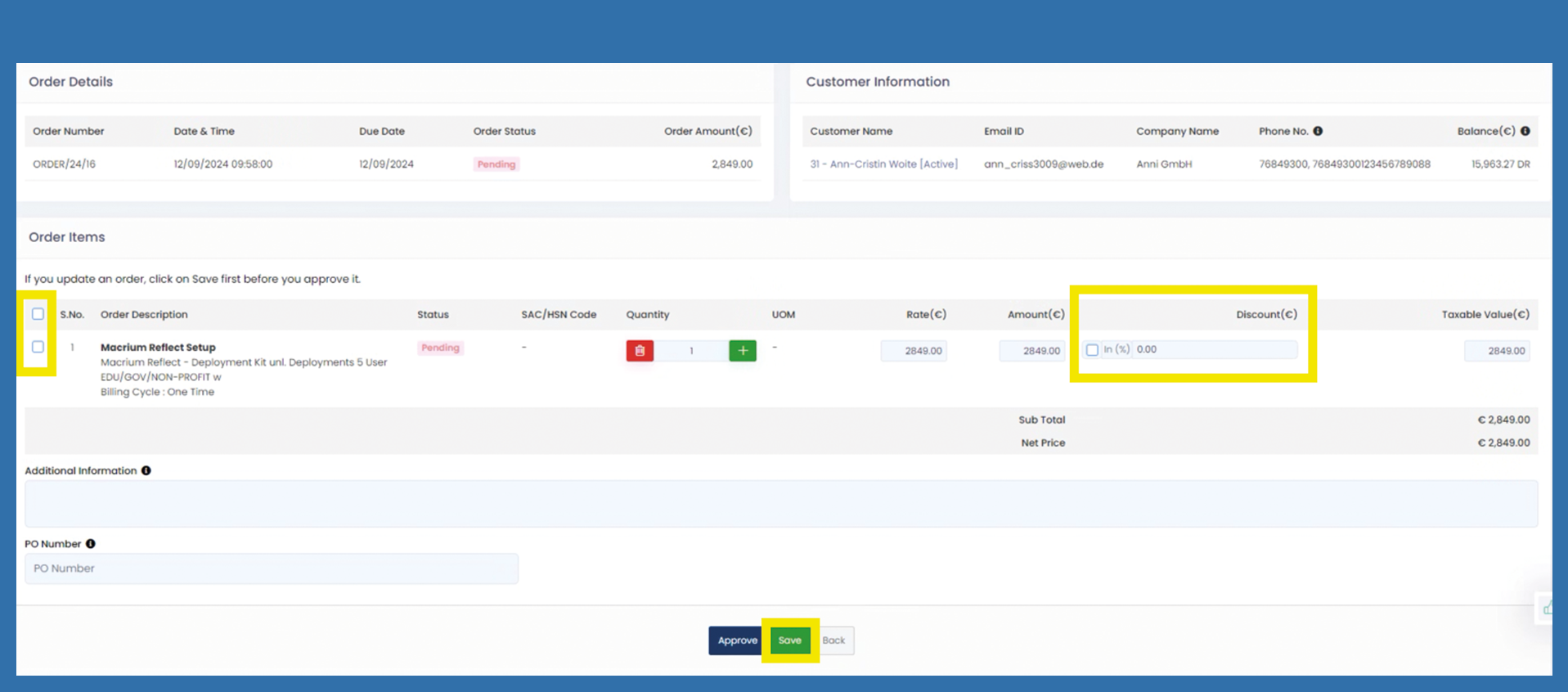
Grant discount
To grant a discount in the amount of a percentage, you can place a check mark in front of the % sign in the Discount (€) field. Otherwise, you can simply enter an amount to be deducted in the writeable field. You must then select the item by ticking the box in front of the item description and then click Save. The changes are then visible in the end customer portal.
Add additional information
If you would like to add a comment to the order, you can do so in the Additional Information field. You must then select the item by ticking the box in front of the item description and then click Save.
PO number transfer
An external order number can be entered in the PO Number field. This order number is also transferred to Prianto and printed on the invoice under reference. You must then select the item by ticking the box in front of the item description and then click Save.
