
Settings > Company Settings
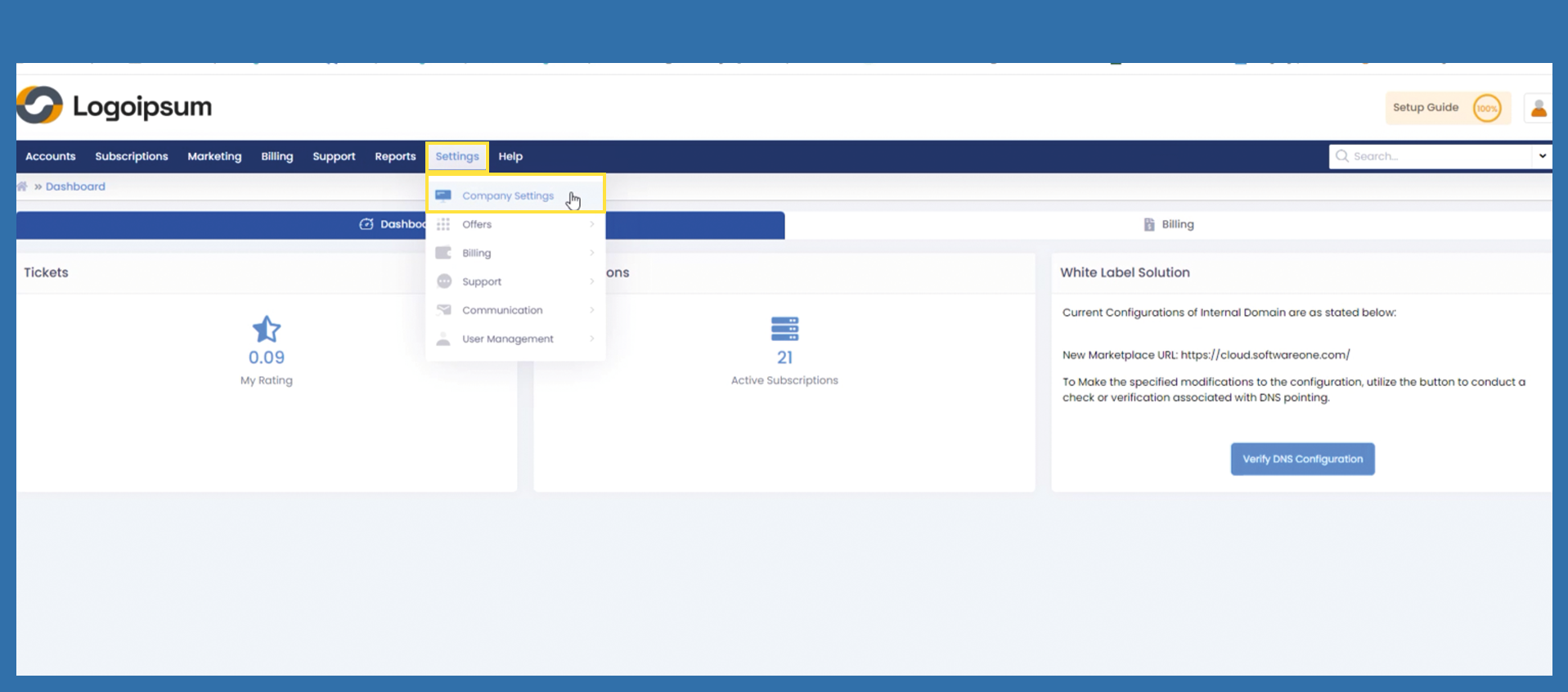
To change your company settings use the following path:
Settings > Company Settings
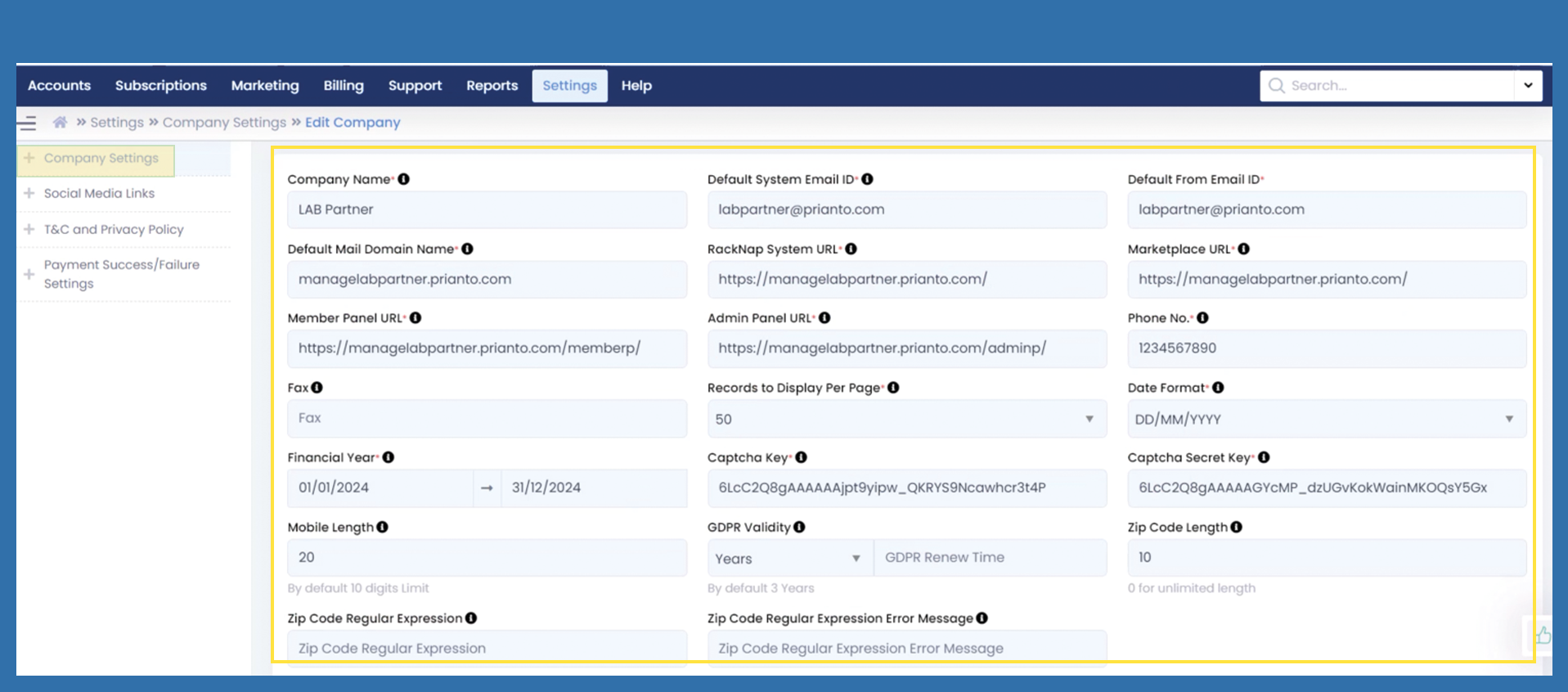
The fields Company Name, Default System Email ID, Default From Email ID and Default Mail Domain Name are automatically entered here from the Getting Started Wizard. You can change this data manually.
The fields RackNap System URL, Marketplace URL, Member Panel URL and Admin Panel URL are also generated according to the specifications from the Getting Started Wizard (depending on the settings for working with the Marketplace).
These fields can no longer be edited.
The Phone No. is also taken from the settings for the Getting Started Wizard and can be changed. The Fax field, on the other hand, is not a mandatory field.
You can choose the Records to Display Per Page and the Date Format via dropdown.
Enter your financial year in the corresponding field. Note: The financial year must be updated manually in the settings after the end of the financial year.
If the setting Internal Domain or Skip for now was selected in the Getting Started Wizard, the Captcha Key and Captcha Secret Key were automatically created and written to these fields. If External Domain was selected, the Captcha Key and Captcha Secret Key were taken from there.
The following fields Mobile Length, GDPR Validity, Zip Code Length, Zip Code Regular Expression and Zip Code Regular Expression Error Message are not mandatory fields. However, we recommend increasing the Mobile Length to 20 and the Zip Code Length to 10.
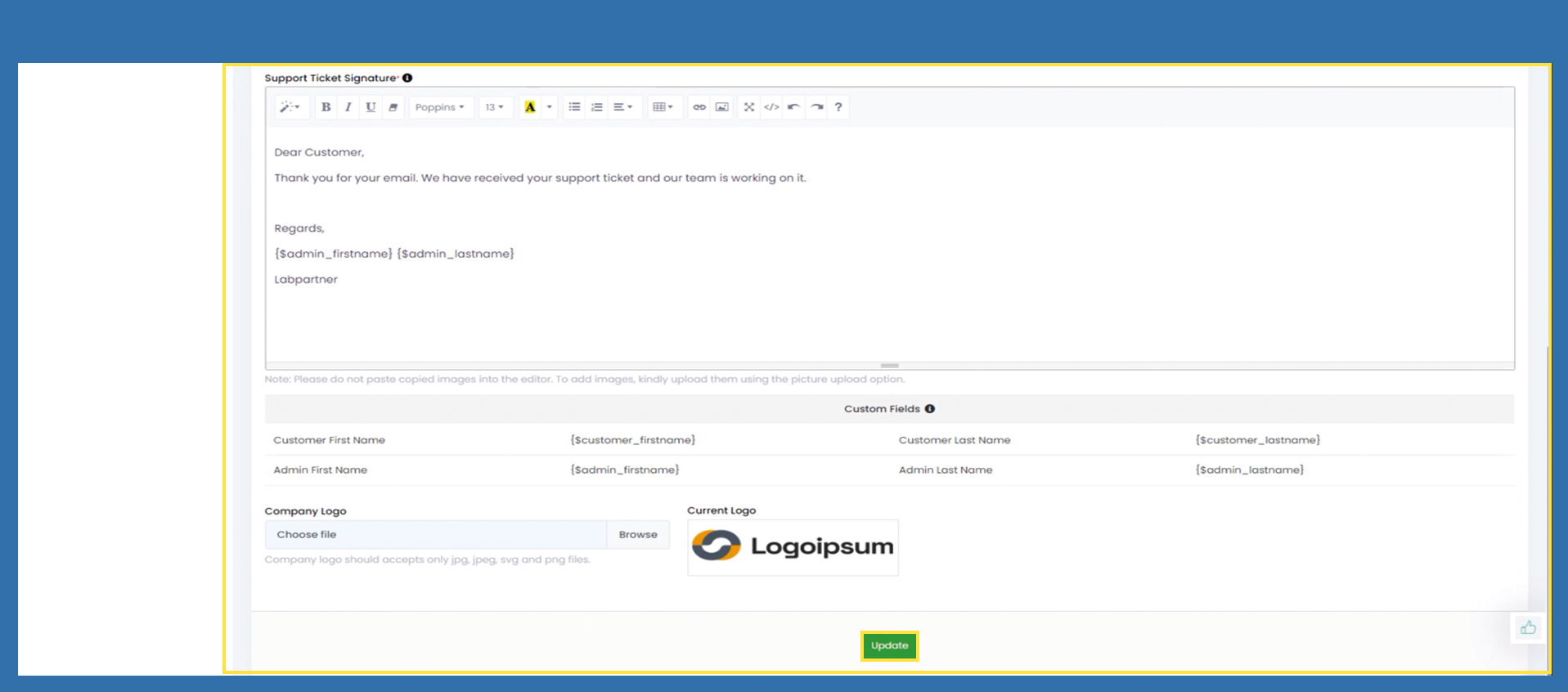
Under the Support Ticket Signature field, enter the signature that is to be mirrored in the support tickets.
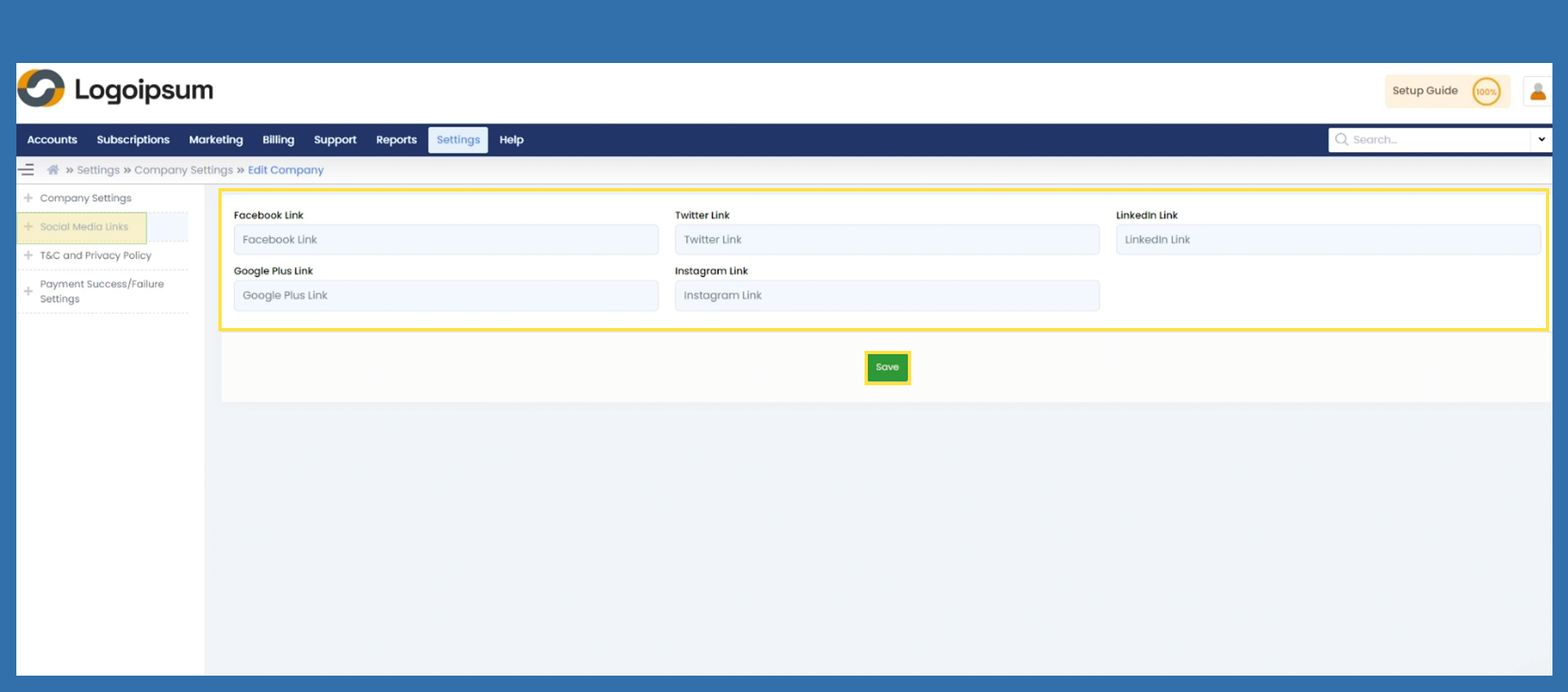
Choose on the left-hand side the tab +Social Media Links. Enter the links to your profiles and click on Save.
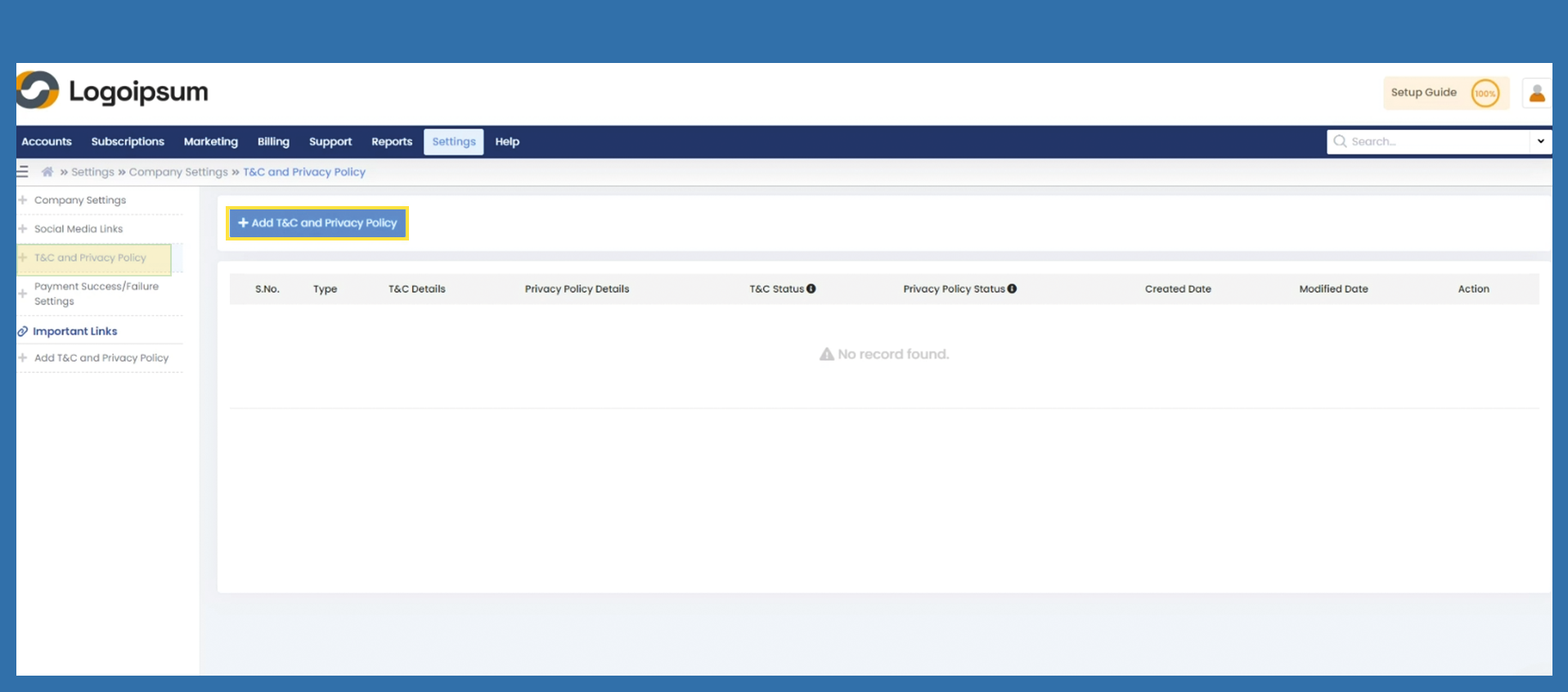
Choose on the left-hand side the tab +T&C and Privacy Policy. To deposit the privacy policy click on +Add T&C and Privacy Policy.
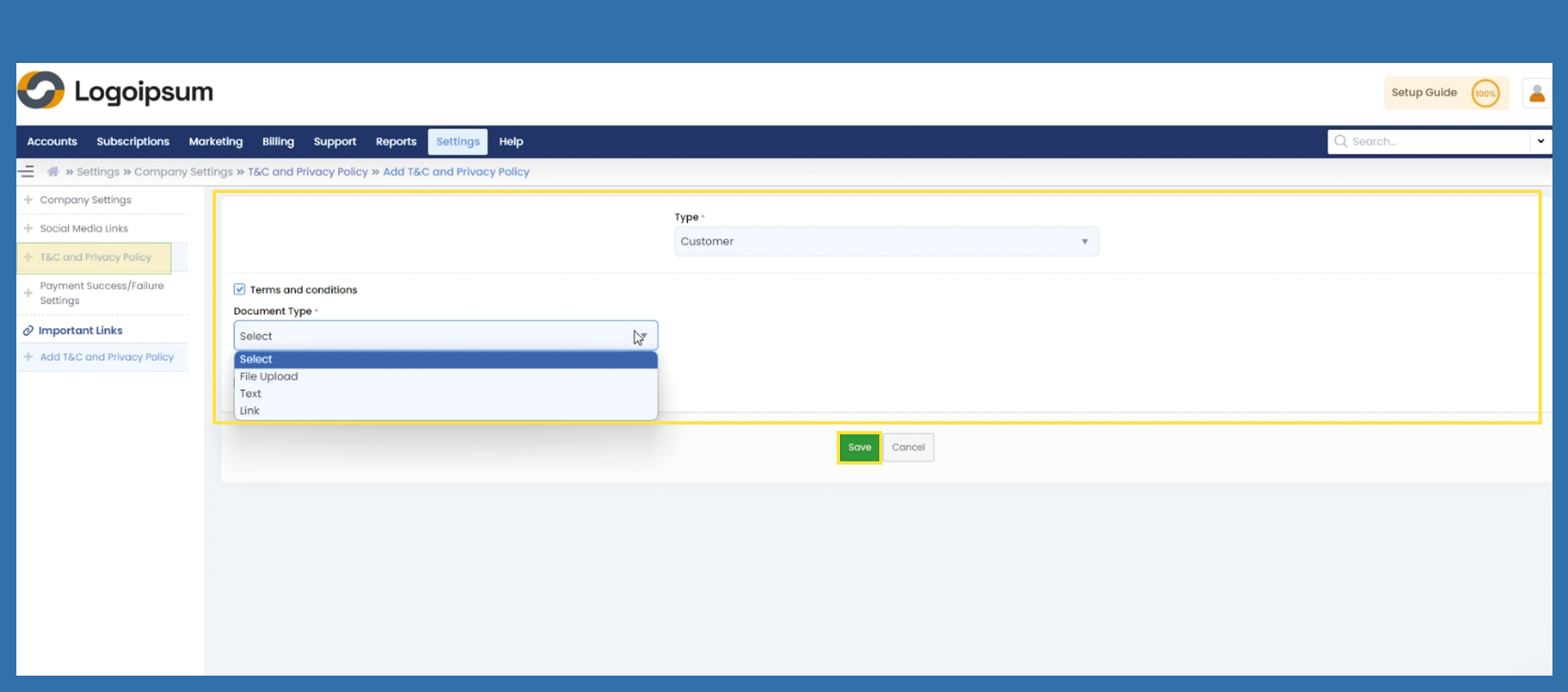
By default, the setting Type Customer is stored. Check the Terms and Conditions box and select in the Document Type via dropdown how you want to bring your terms and conditions into the system.
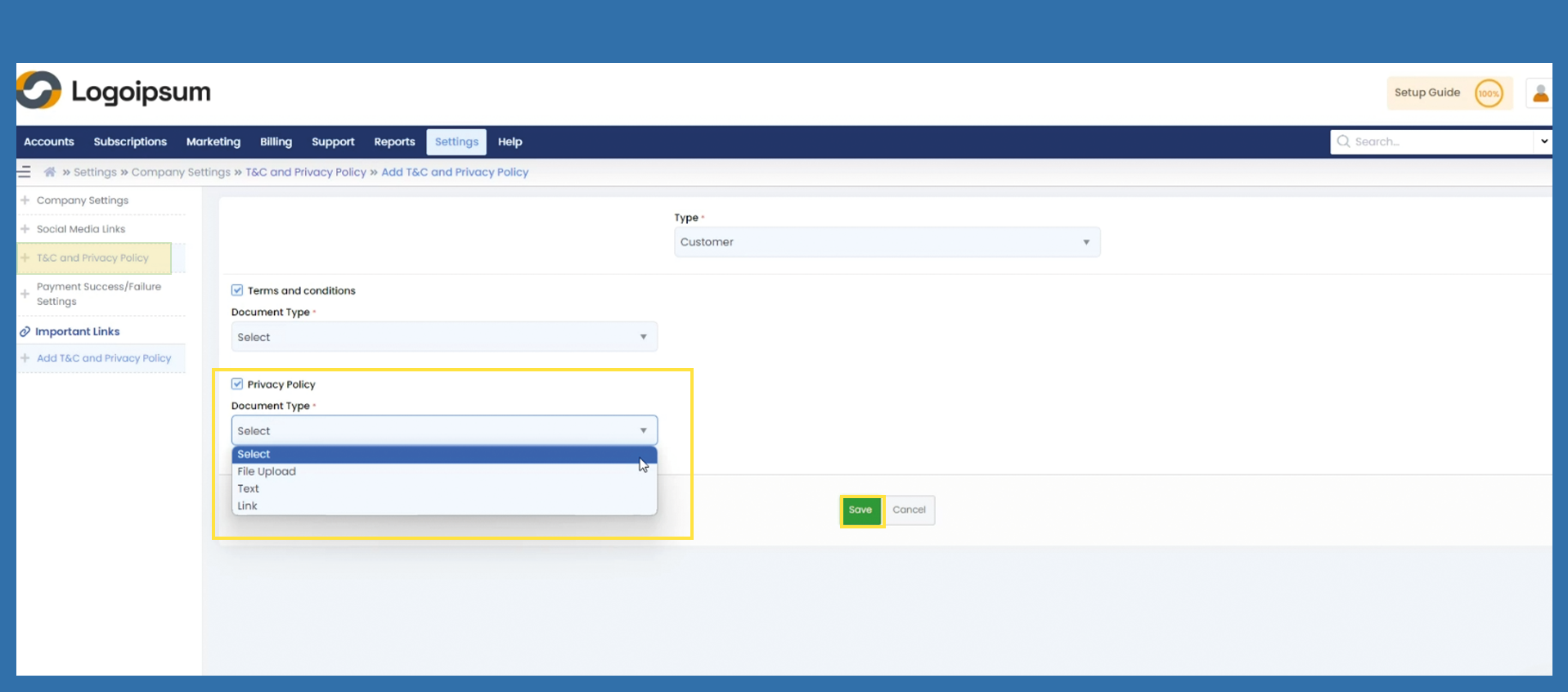
Check the Privacy Policy box and select in the Document Type via dropdown how you want to bring your Privacy Policy into the system. Click on Save.
Optional you can choose on the left-hand side the tab +Payment Succes/Failure Settings. The processing of payments in the Marketplace cannot be mapped in the process.