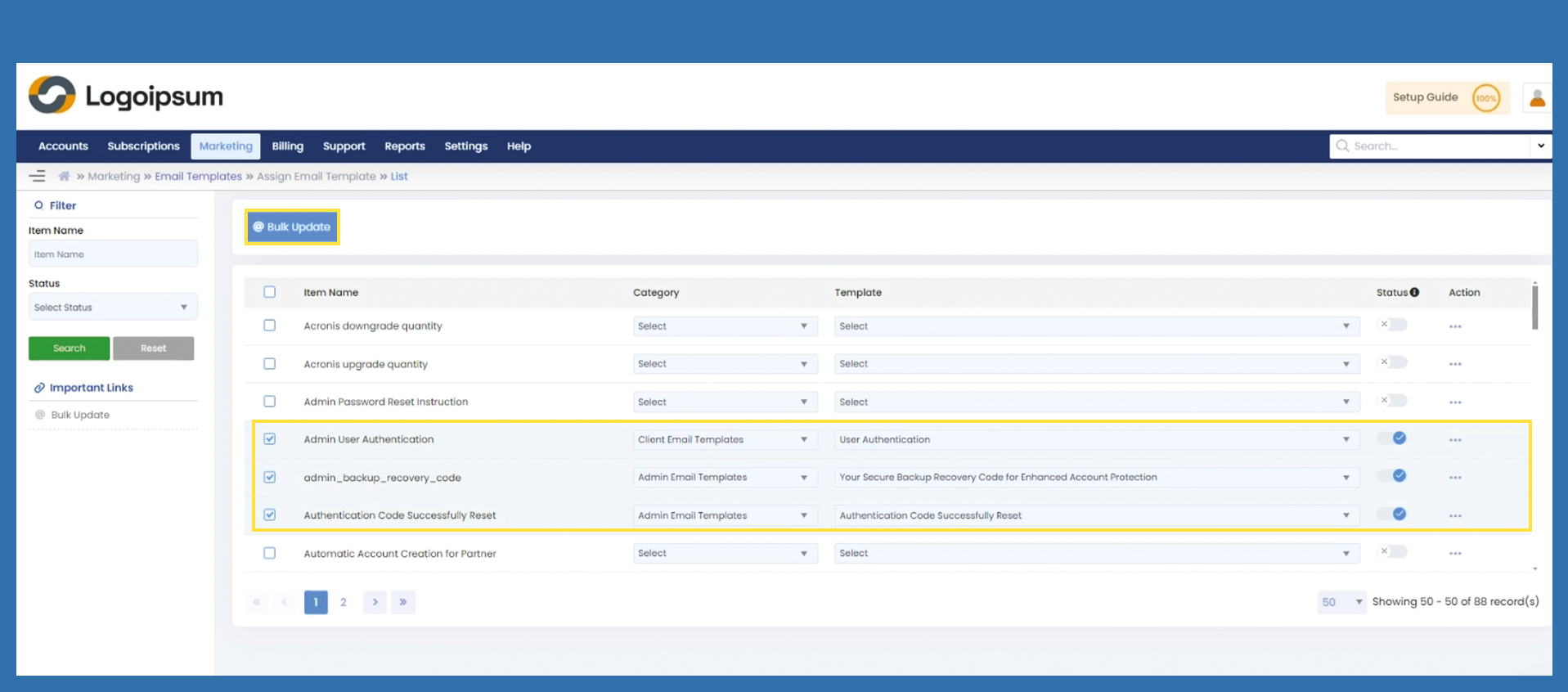
Marketing > Email Templates > Assign Email Templates
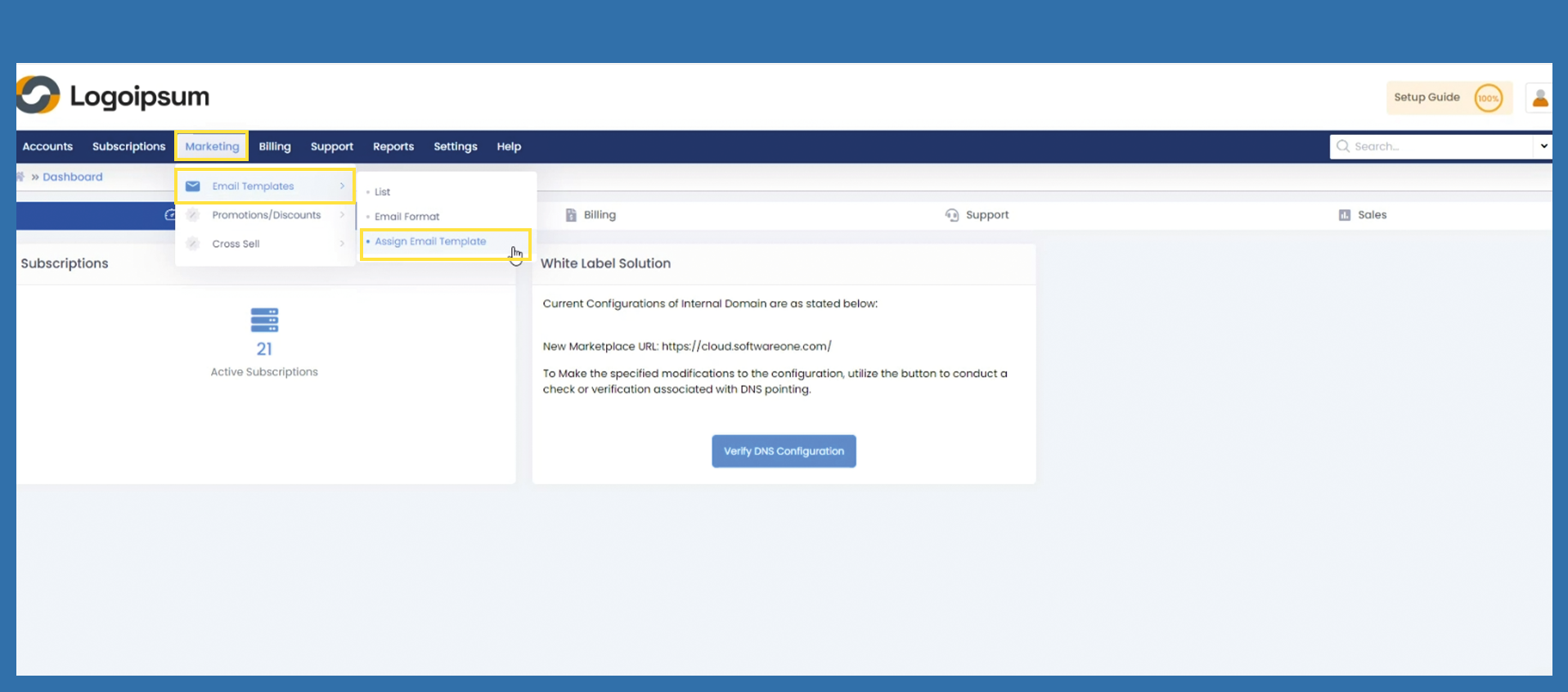
The Assign Email Templates function is used to assign previously created email templates to a specific process.
To assign an Email Template, please use the following path:
Marketing > Email Template > Assign Email Template
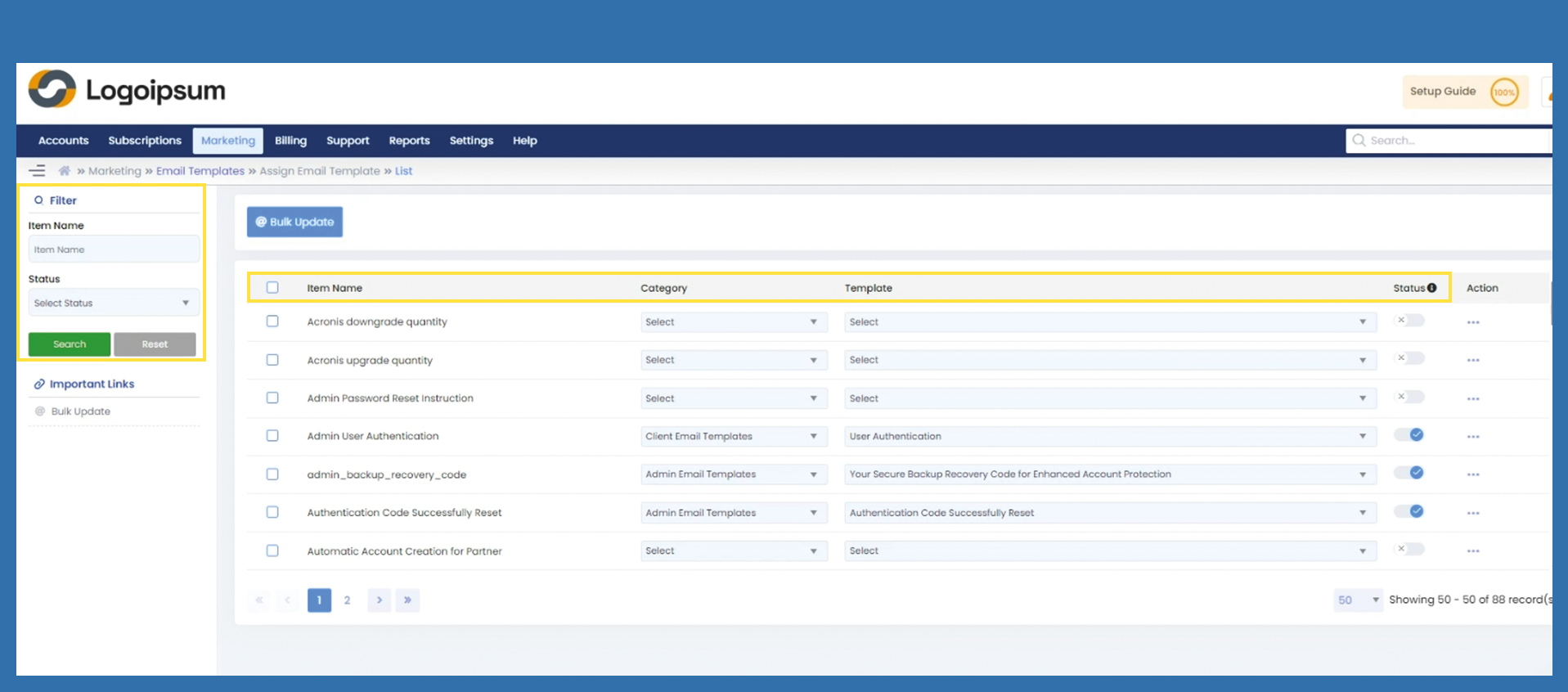
To search for existing processes for which a template is to be assigned, you can use the filter functions on the left side.
Item Name: This can be used to search for processes to which you want to assign a template.
Status: This can be used to filter for different statuses.
To then filter, please click on Search.
The captions have the following meaning:
Item Name: Describes the process itself.
Category: Email categories are options to distinguish different templates.
Template: Everything under this heading indicates which template is currently assigned to this process.
Status: If an X is displayd, this Email Template is inactive. If a blue slider is displayd, the Email Template is active.
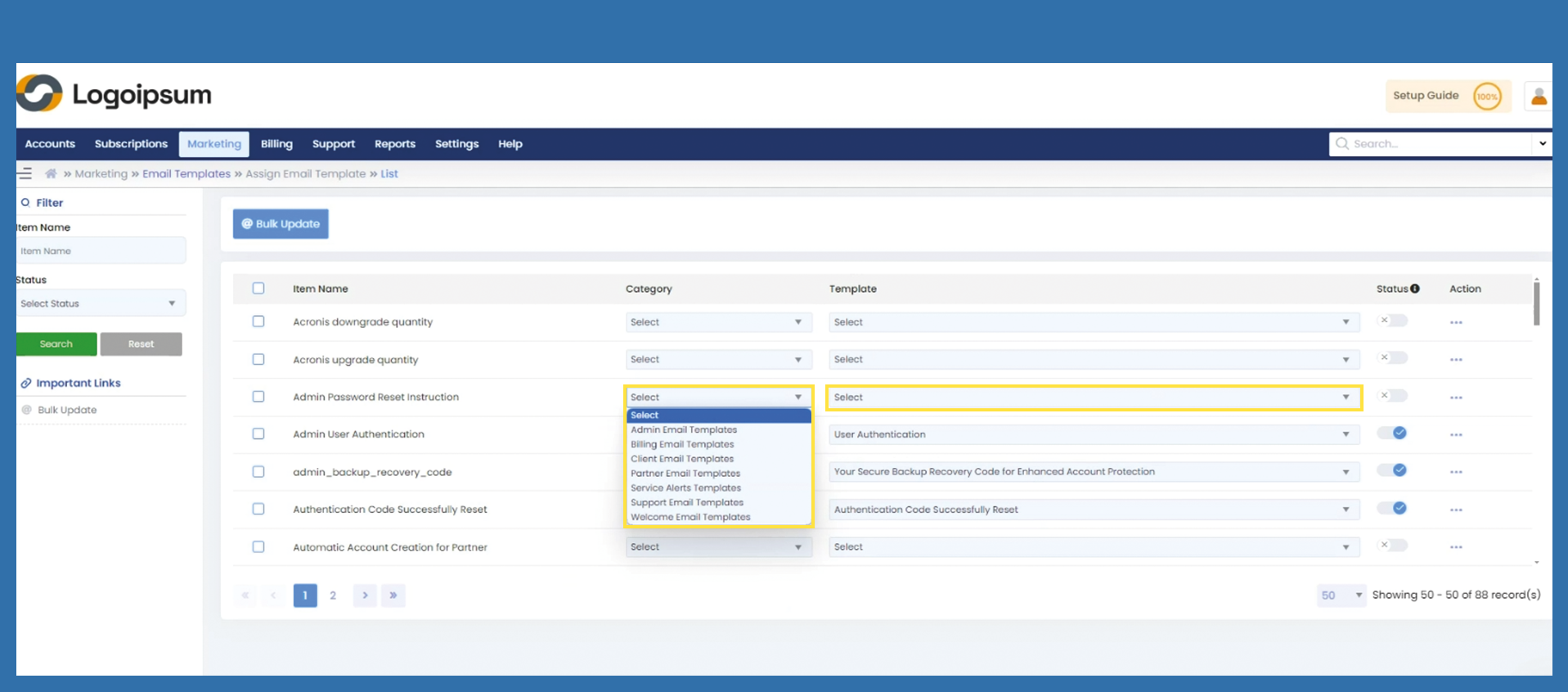
To change an existing setting for a category or template, select the desired dropdown for the process.
Assign the desired category or template.
To save your changes for one single item name, please click on the three dots under the caption Action and choose Save.
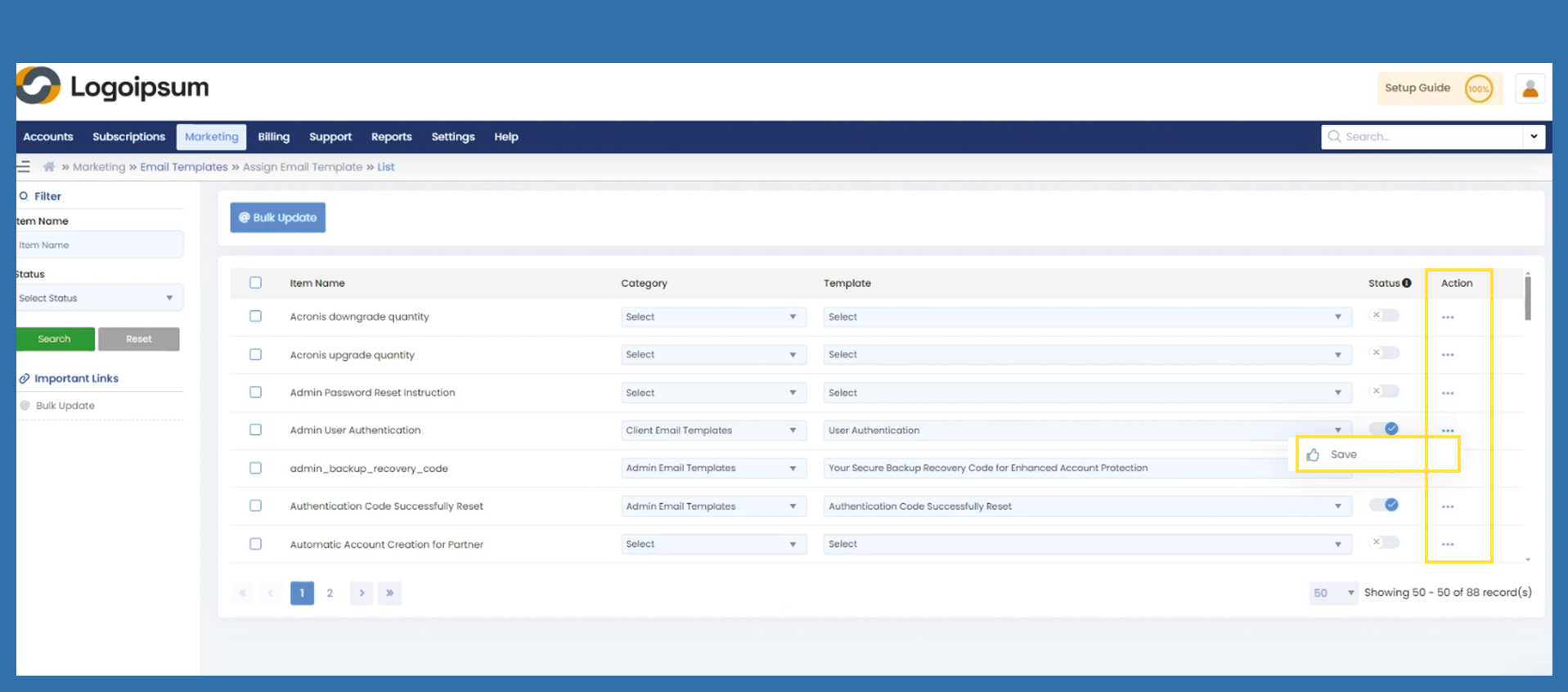
If you want to change settings for more than one Item/Process, please assign your changes and then mark the checkboxes on the left side of each Item/Process.
To Save your changes then, click Bulk Update to Save all at the same time.
If you want to mark all boxes below the caption item name, please click the checkbox on the left side of Item Name. Every box will be marked.