Settings >Offers > Basic Configuration > Offer Group > Offer Name > Export & Import Pricing
Perhaps it is easier for you to work with an excel table. Therefore, we will first show you how the export works.
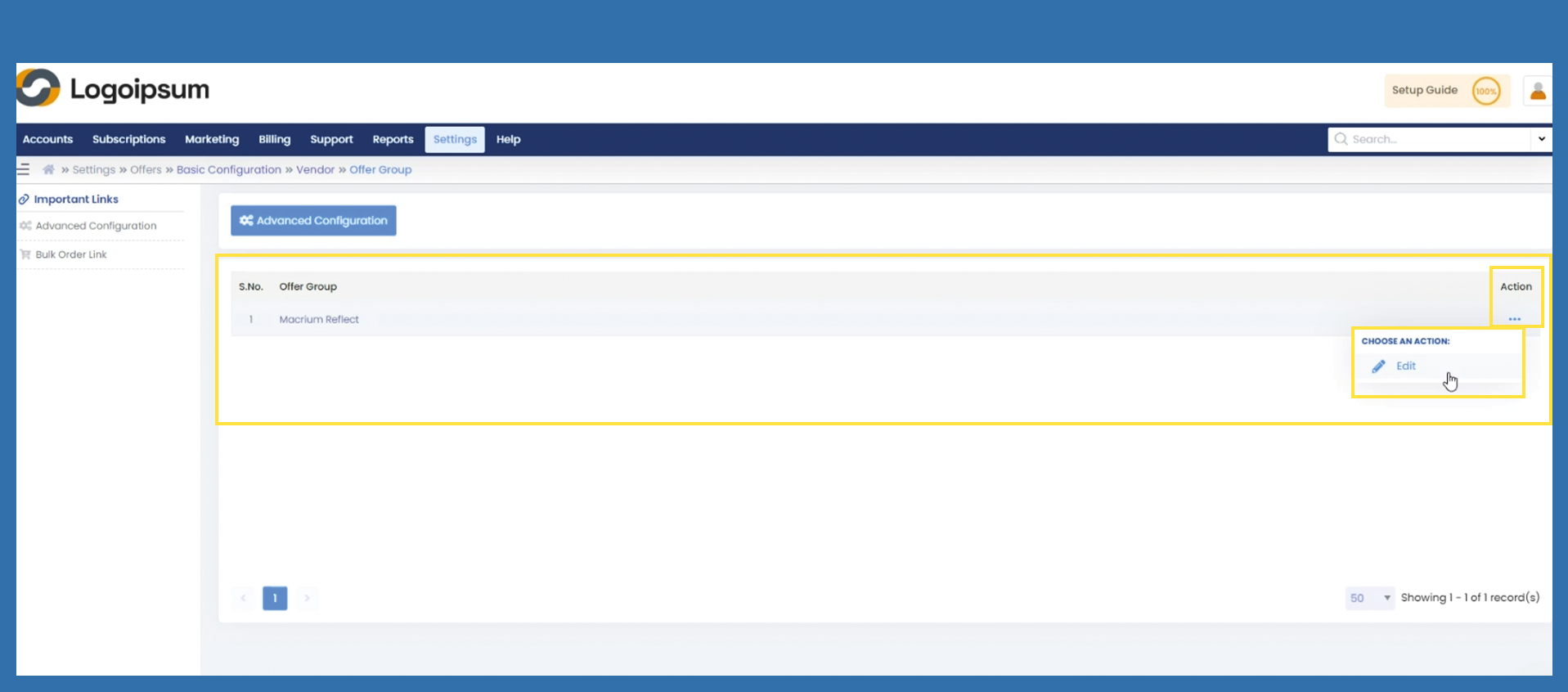
Your starting point is the page with the offer group. Click on the linked name under offer group.
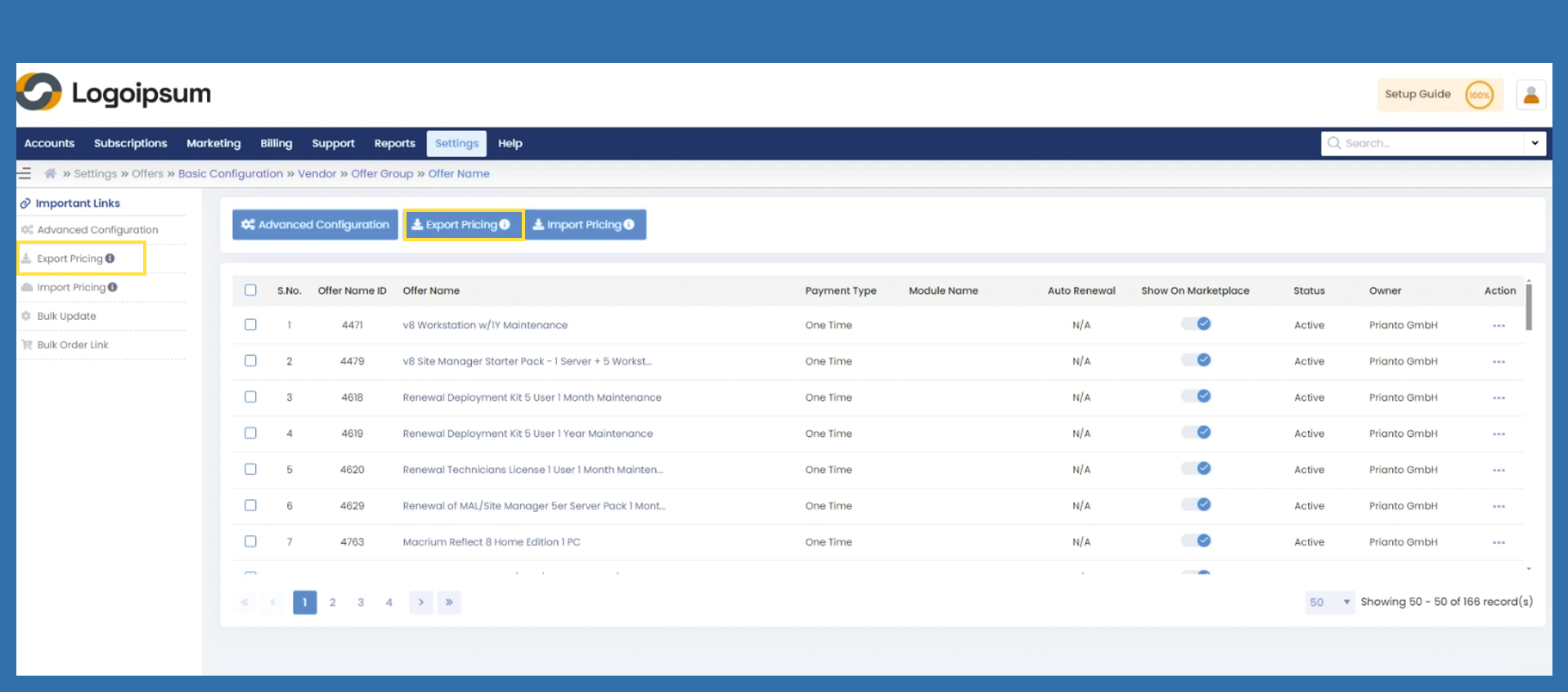
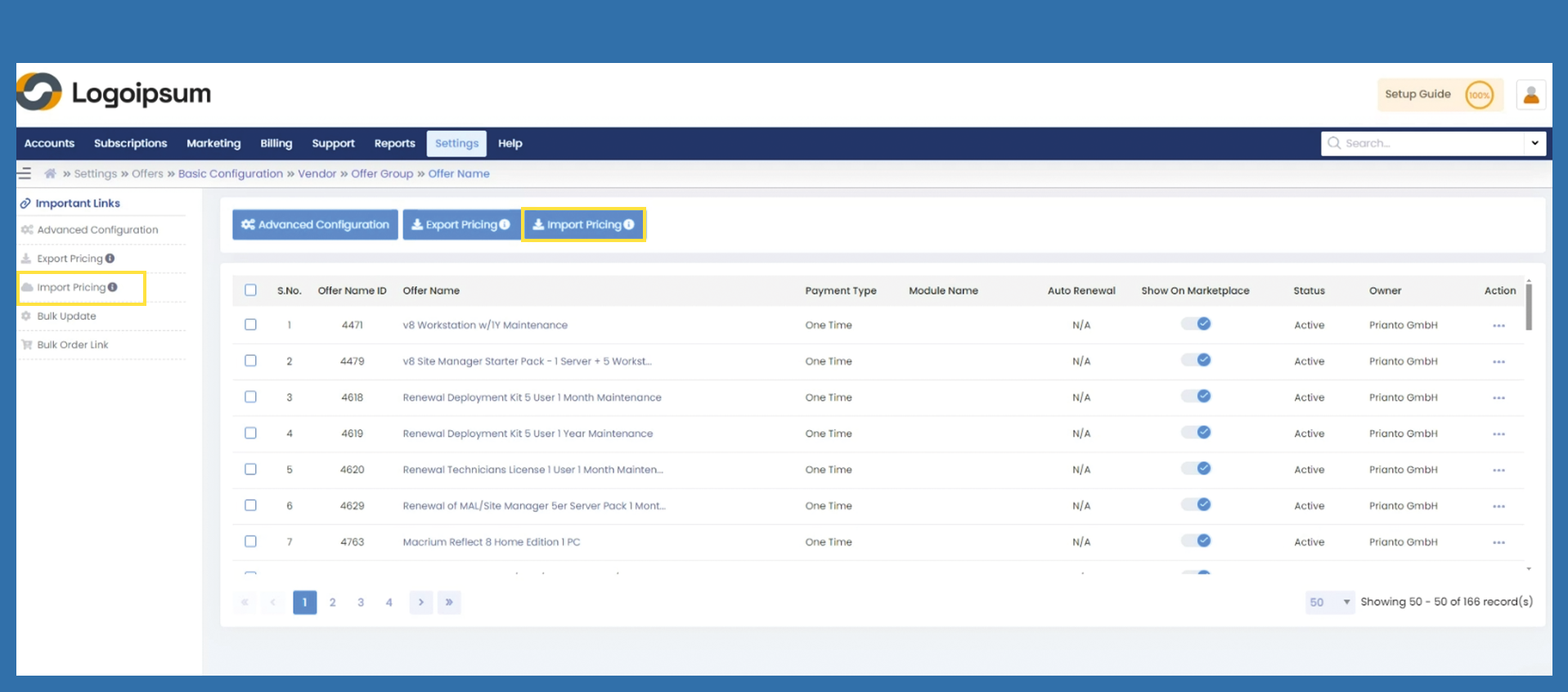
You can use the blue button or Export Pricing under Important Links.
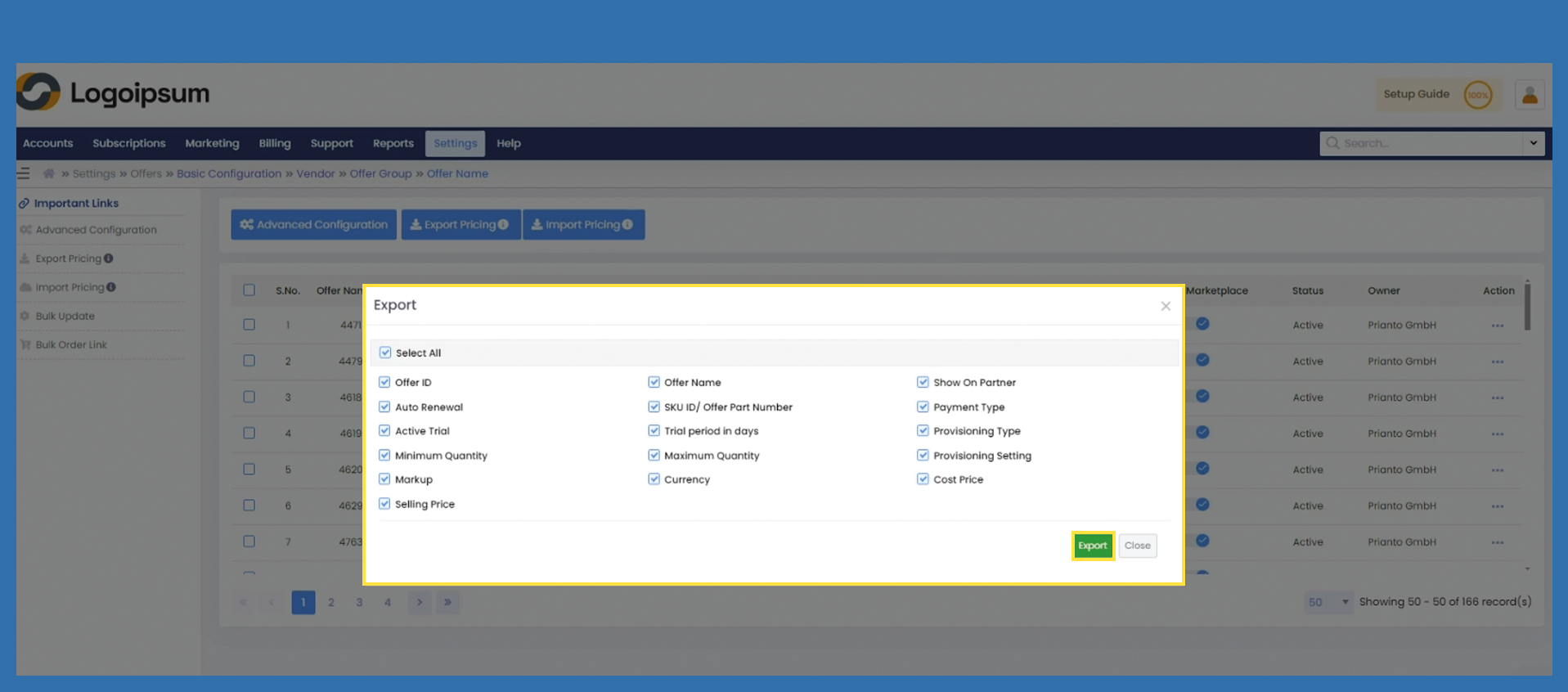
A screen with selection fields opens. You can now select which information you would like to have displayed, then click on Export.
If you would like to use the exported list to adjust and import your prices, we recommend that you export the entire data, as otherwise there may be problems when importing.
You will now find the list in your download folder.
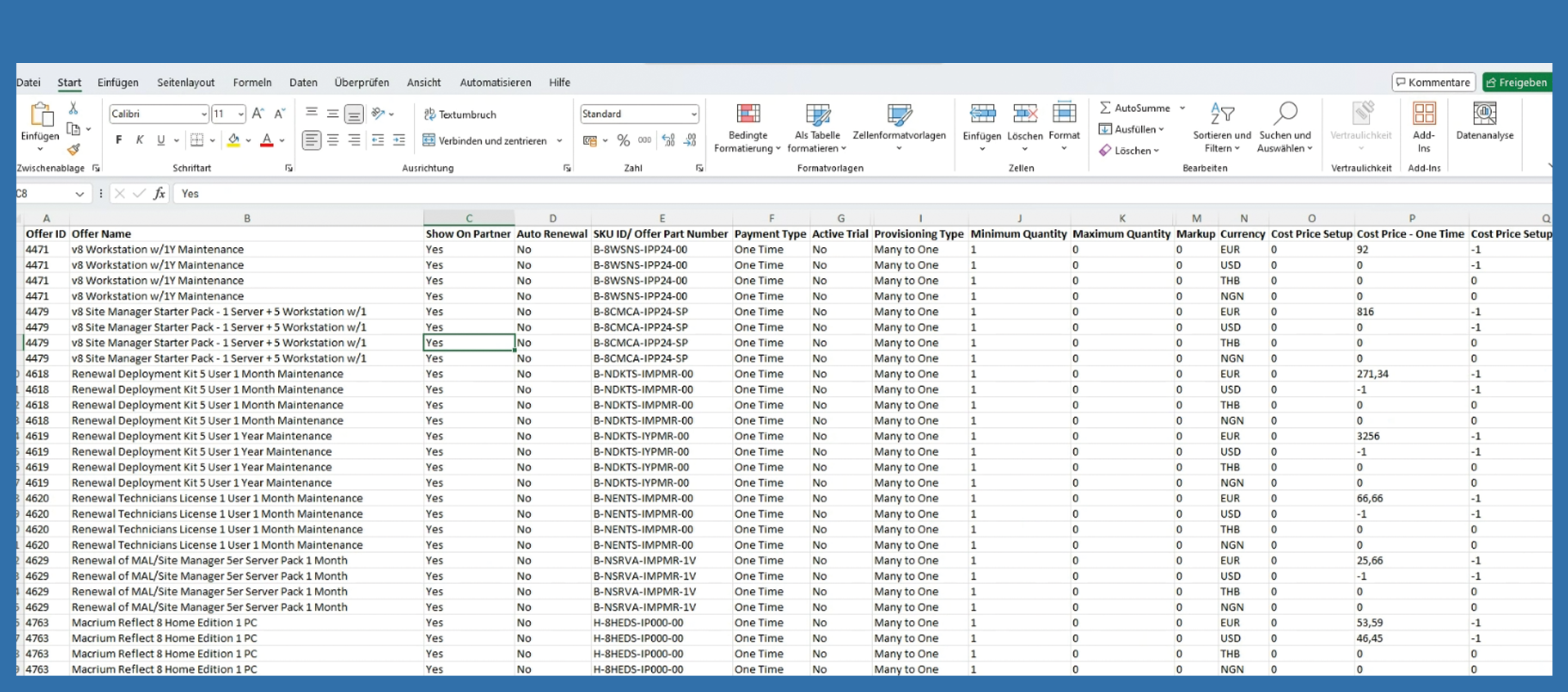
If you now want to import new prices, make your changes in the Excel list.
You can adjust your selling prices in the Selling Price - One Time column. For other adjustments, further explanations can be found in the table on the second page. Save the file.
Now click on the blue button or on Import Pricing under Important Links.
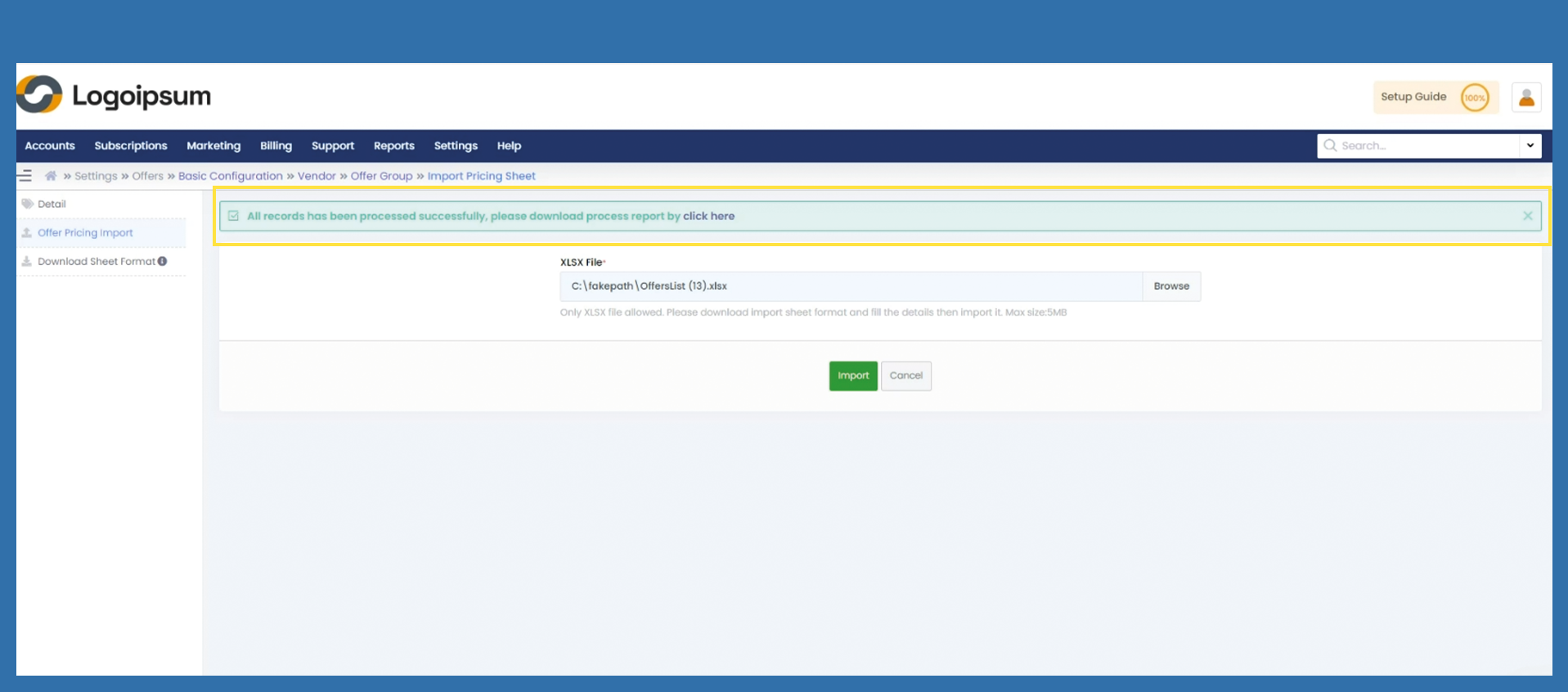
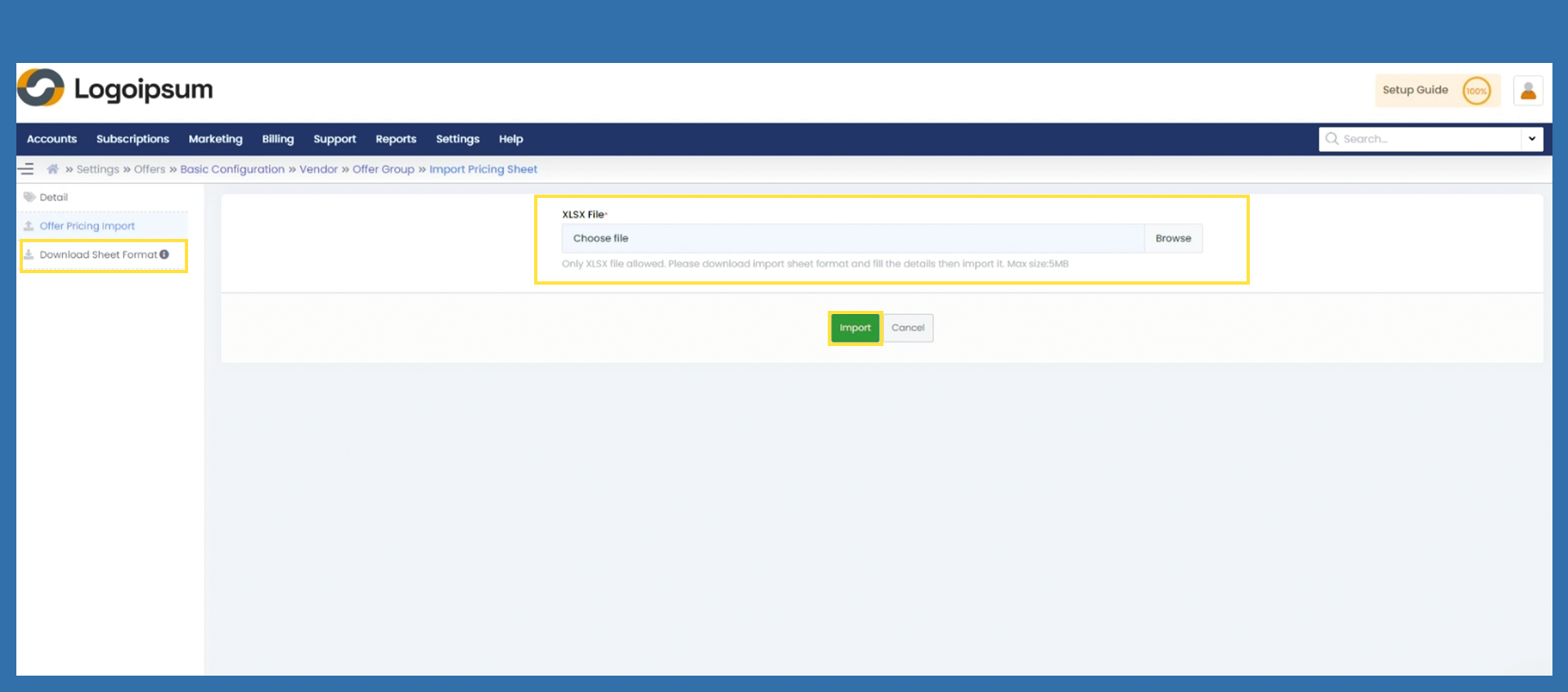
You can now select the completed file by clicking on Browse or the Choose file field.
If you need a file that you want to fill, you can download an empty table on the left side by clicking on Download Sheet Format.
Then click on Import.
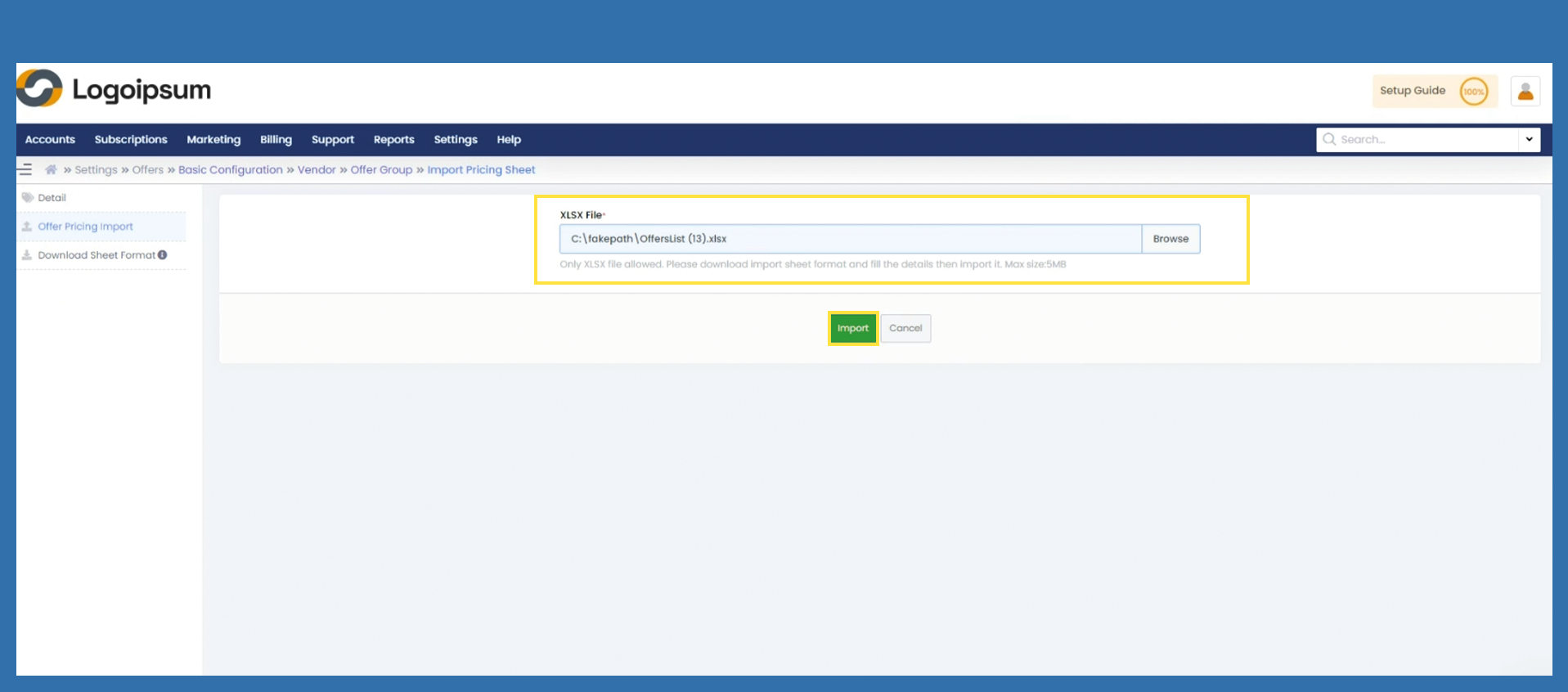
Importing the file will not take any time. However, as soon as it has been successfully uploaded, you can recognize this by the banner.
If something is wrong with the list, you will receive an error report at this point. Download this and correct the offending fields.