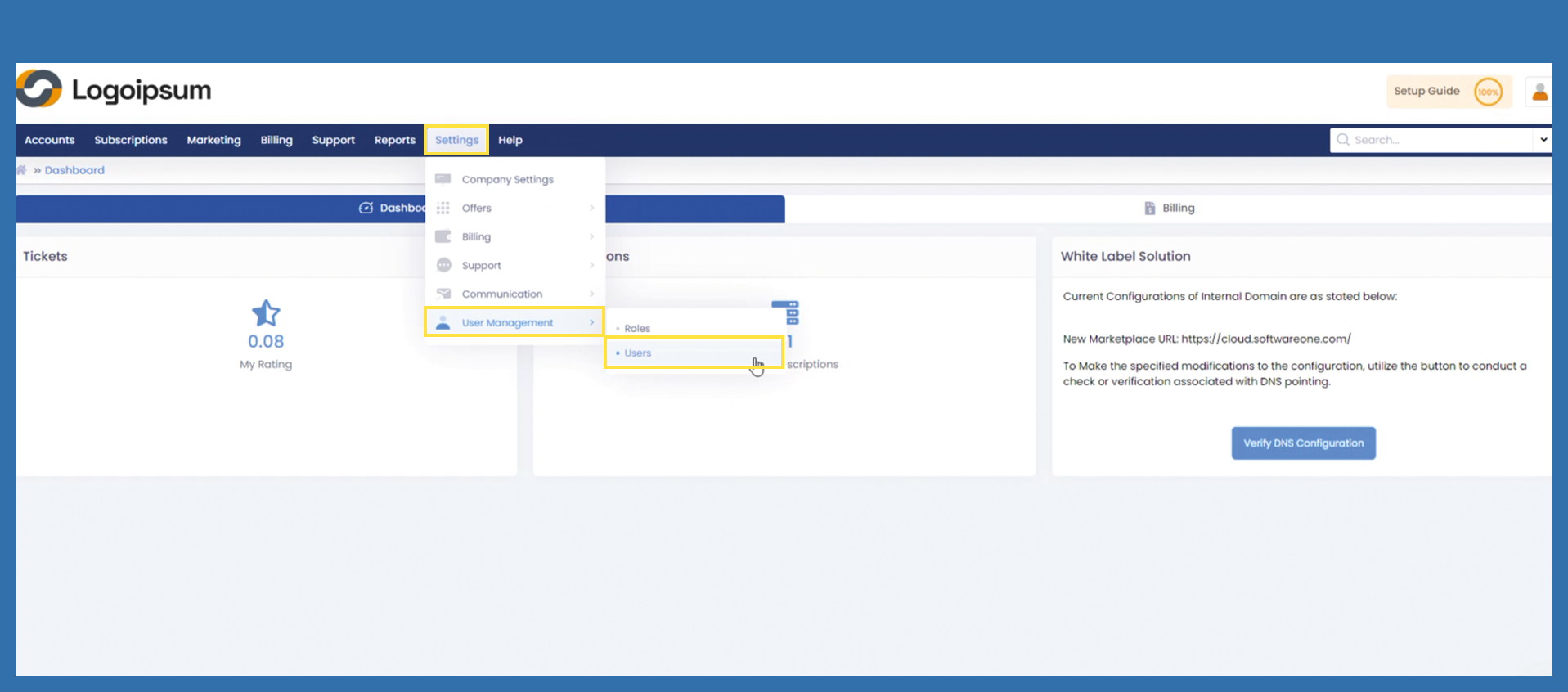
Settings >User Management > Users
Have you already created a role?
Then you can now create additional users if you have not already done so in the Getting Started Wizard. Use the following path:
Settings > User Management > Users
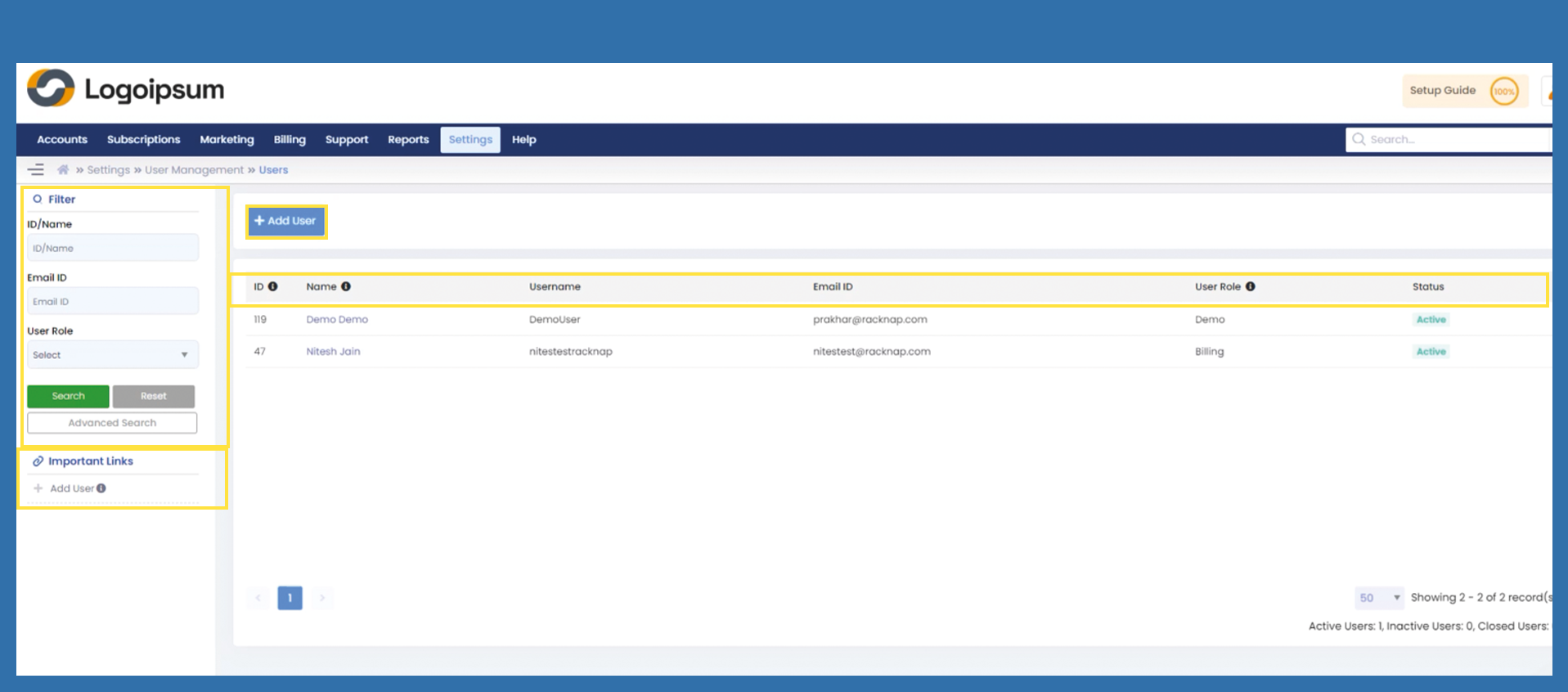
In the overview you will find the Name, the Username, the Email ID as well as the assigned role and the Status, whether your subuser is active or inactive. If you have already created several users, you can use the Filter Section on the left-hand side to select the desired user. You can add new users both under Important Links and with the blue +Add User button.
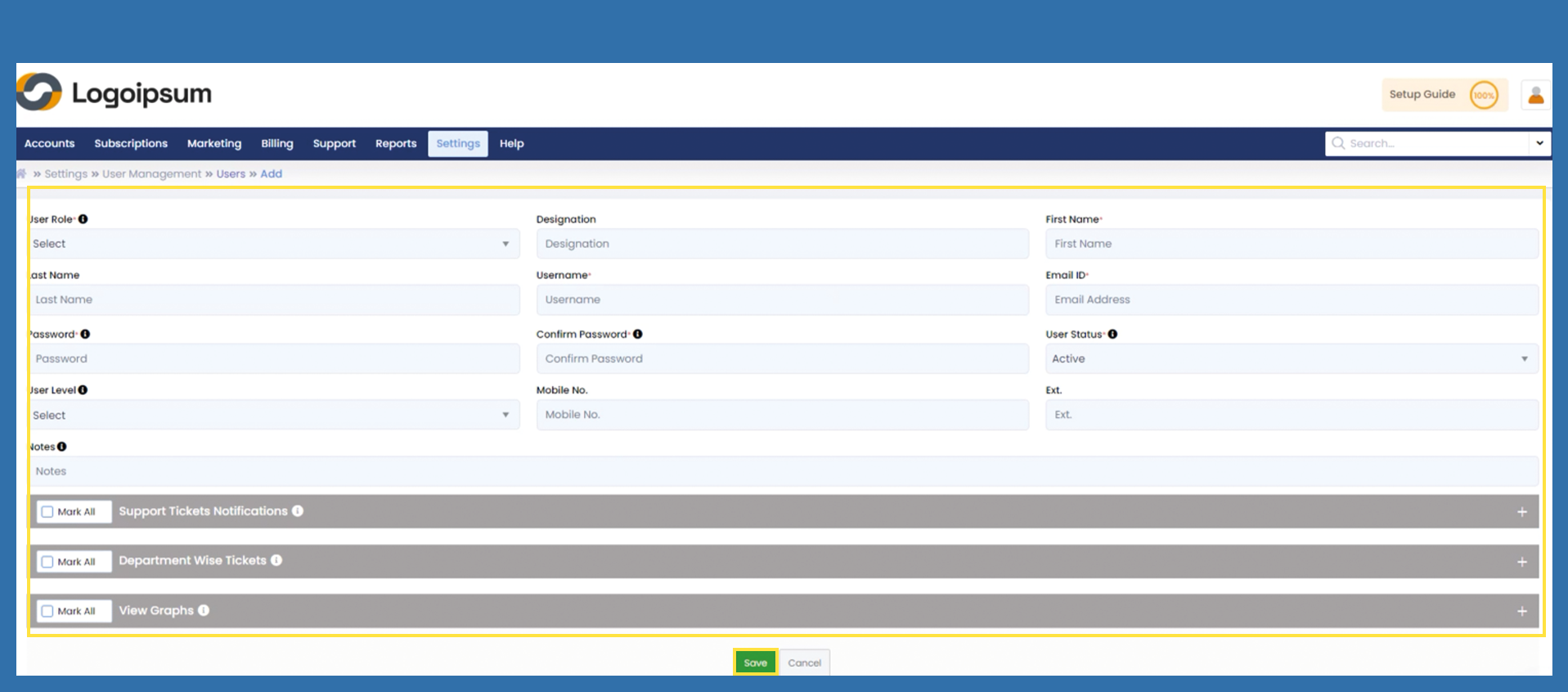
Fill in all mandatory fields. Select an appropriate role in the User Role field via dropdown. Fill in the First Name and Last Name fields. Assign a user name, the user name must not contain any special characters and must be written without spaces, we therefore recommend assigning first and last names as the user name. e.g. Max Mustermann = maxmustermann
Enter the Email ID of your employee and assign a password in accordance with the security guidelines. Then set the status to Active.
Support Tickets Notifications: Here you have the option to access further rights for the user aside from the already enabled rights of the Role. For example: The Support checkbox has been selected here. If a support ticket is then created with the Support department, the user receives the same email in addition to the administrator stating that a support ticket has been created.
Mark All will select every field. If you want to assign only specific rights, please click the individual check boxes one by one.
Department Wise Tickets : Here you have the option to access further rights for the user aside from the already enabled rights of the Role. For example: You have created a new department for better ticket support under the following path. Settings > Support > Ticket Department. To make the newly created department visible, the check mark must be set under all users who are assigned to the new department.
View Graphs: Here you have the option to access further rights for the user aside from the already enabled rights of the Role regarding Graphics. Please Note: If, in the previously assigned User Role, certain rights are not assigned, the user won't be able to access corresponding graphics. He will be able to see the graphs, but not access further details.