Settings >Offers > Basic Configuration > Offer Group > Offer Name > Set markup or price on single product
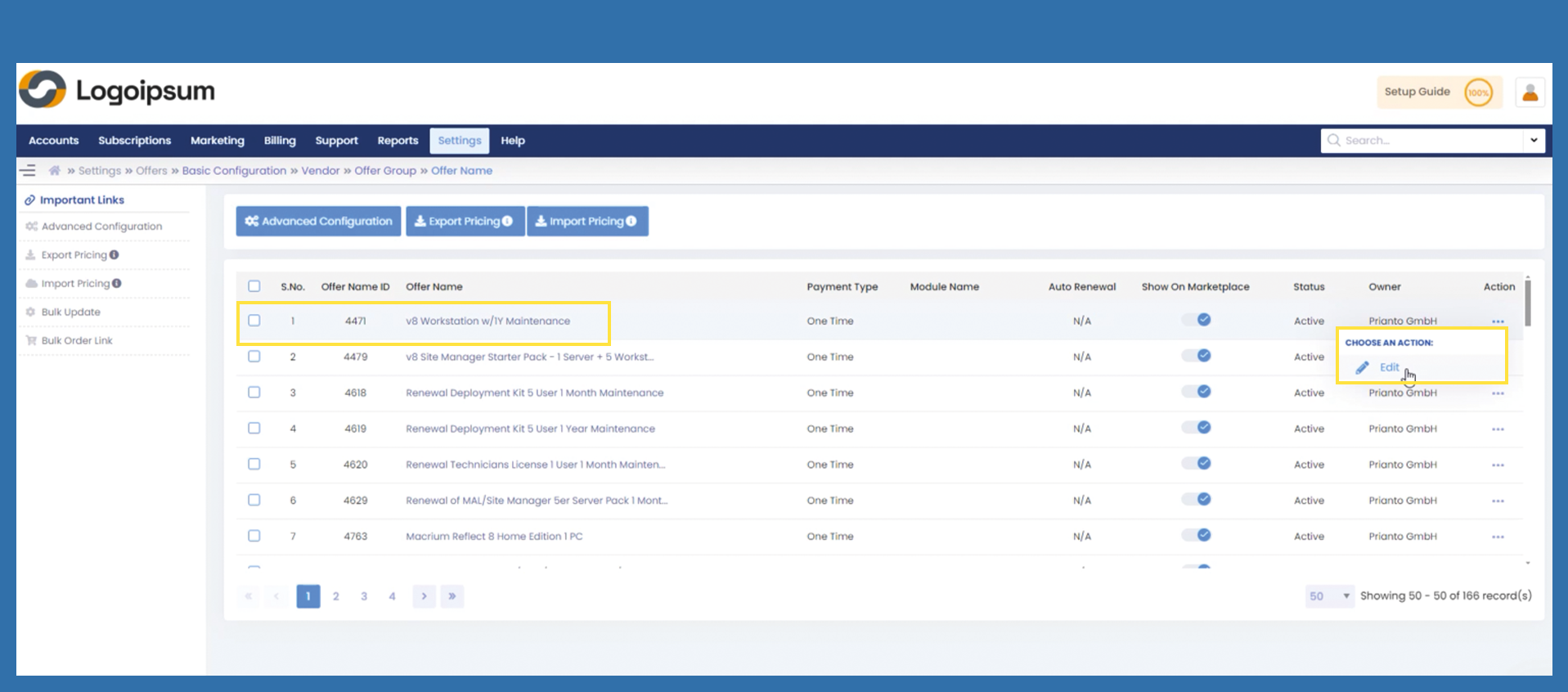
In terms of the overview, you again have various options to come to product details or to the pricing for each product.
Click on the corresponding linked offer name to come to the details of the product.
Or click on the three dots under Action, then Edit to come directly to the pricing.
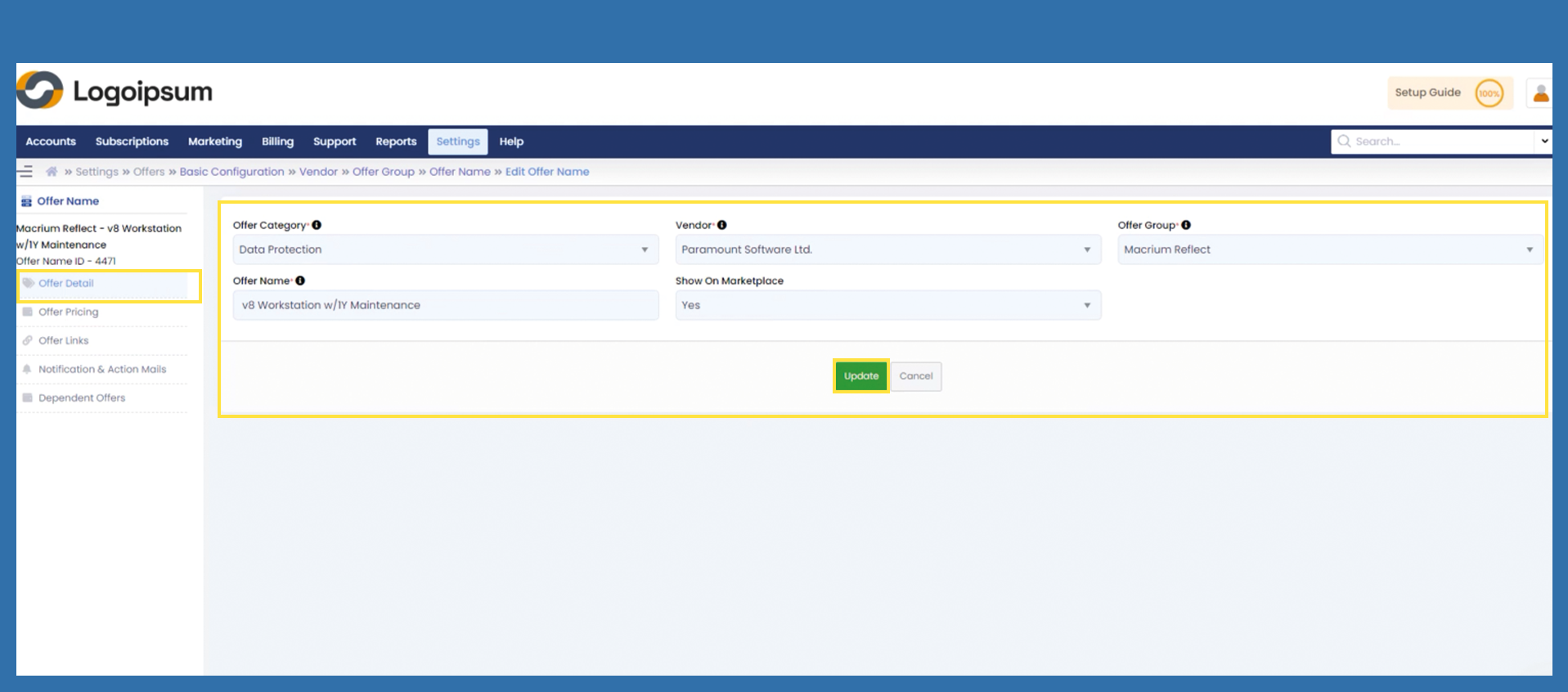
If you have clicked on the desired article, you will now be taken to the details of the article. You cannot make any changes here, the information comes from Prianto's Admin Panel.
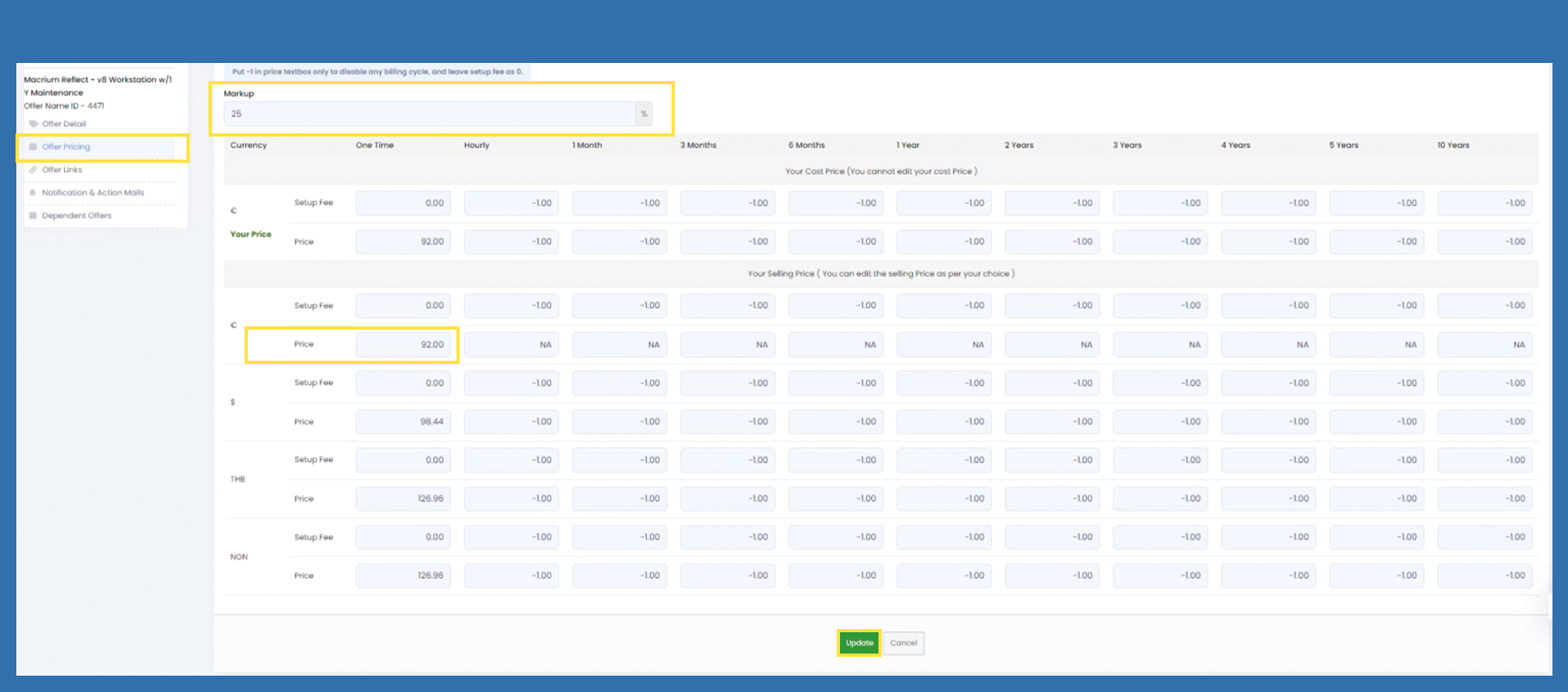
On the left-hand side you can now click on Offer Pricing and you will be taken to the price details of the previously selected item.
You will also be taken to this page if you have clicked on Edit for an item.
You can now enter a markup for this item in the Markup field and click Update. Also you have the option of entering a fixed price for this item, which must also be updated here. The prices are now displayed on the Marketplace.
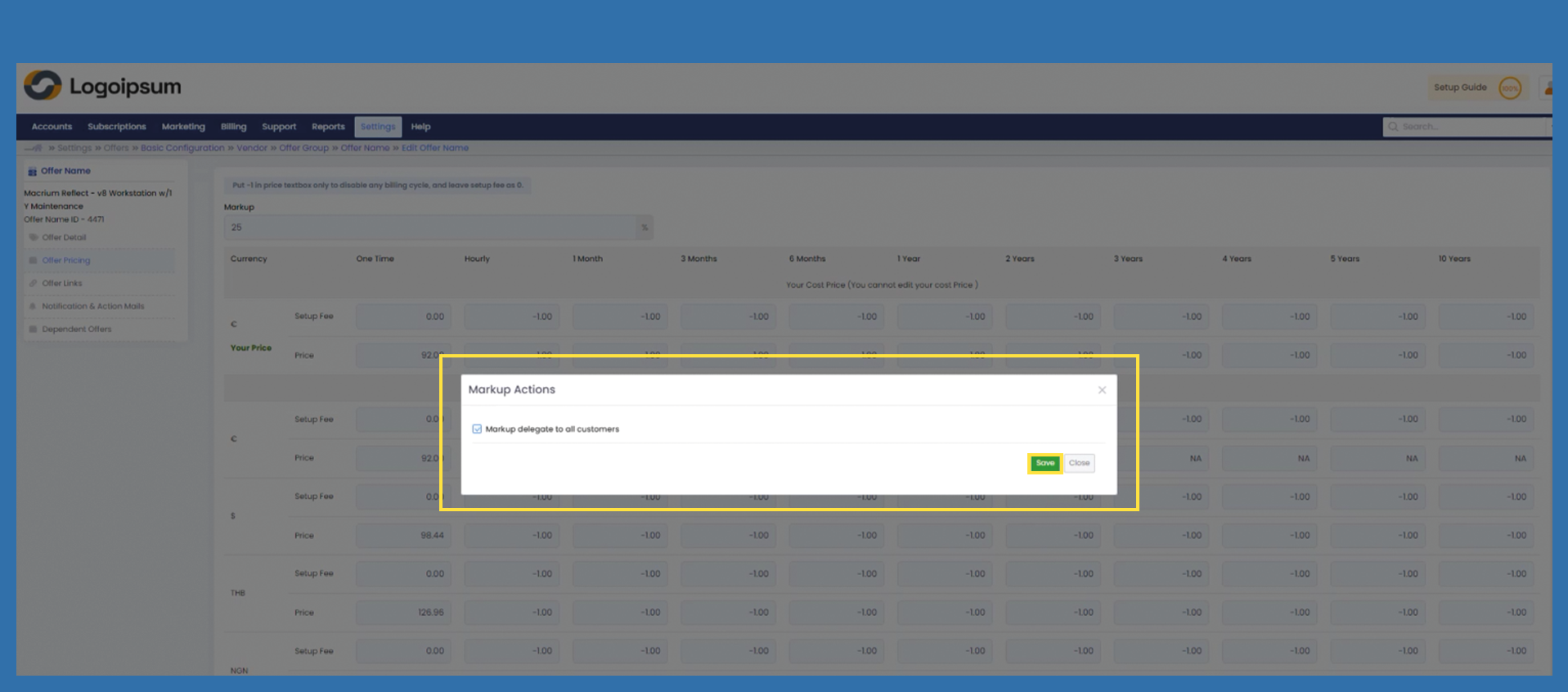
After you have clicked on Update, a pop-up opens where you have to check the box under Markup delegate to all customers and confirm with Save.