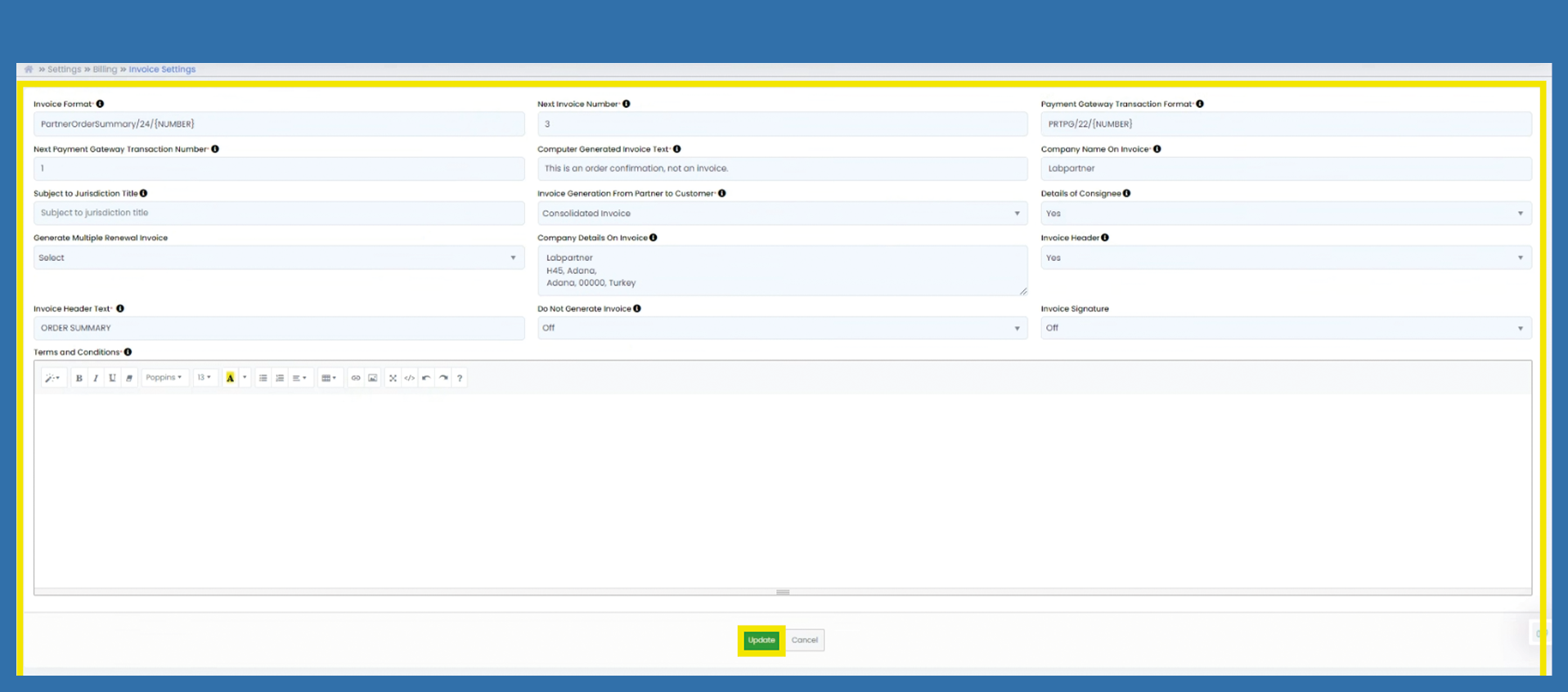
Settings > Billing > Invoice Settings (Order Summary)
No payments are currently processed via the Marketplace. You can now find the order summary under the Invoices section.
You have already made some settings using the Getting Started Wizard. If you want to make changes now, you can do so under the following path:
Settings > Billing > Invoice Settings
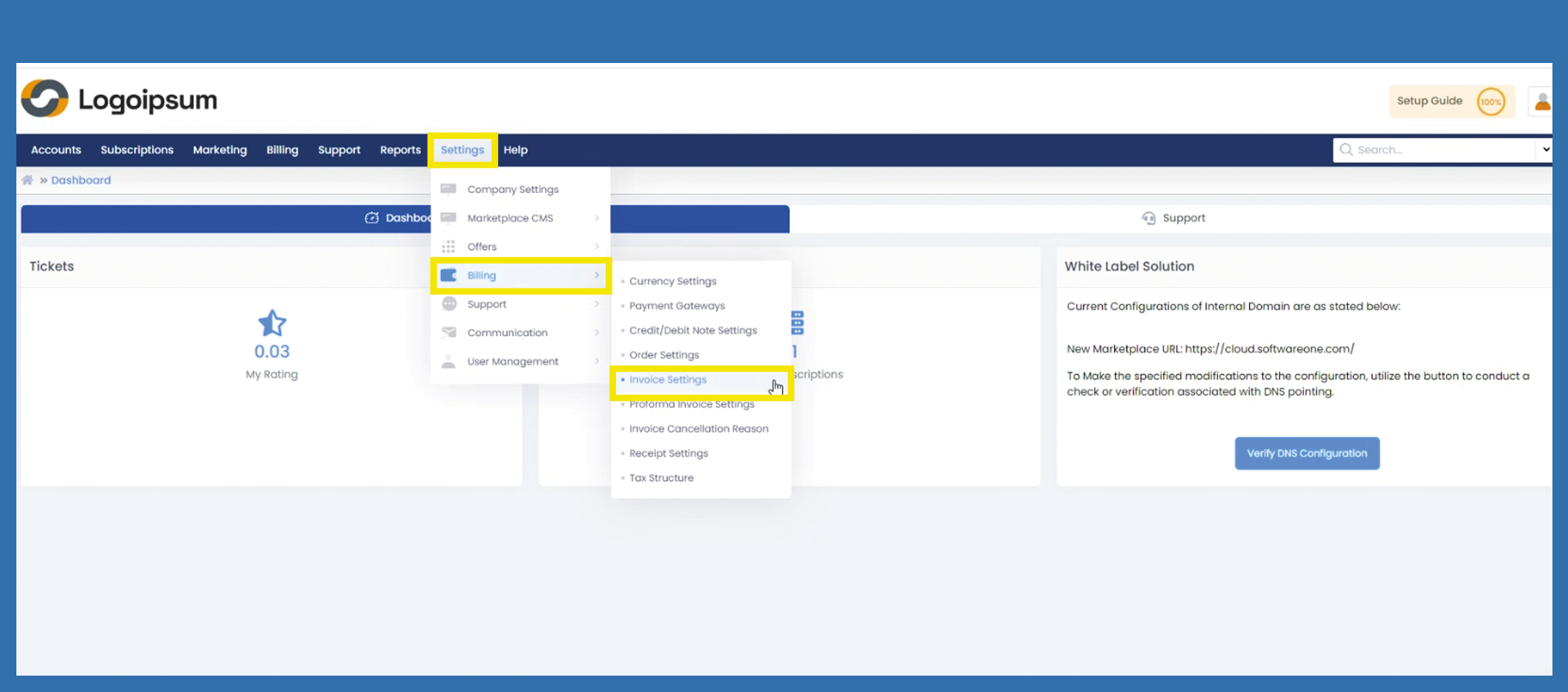
You can assign the setting for the document format of your order numbers here. The variable {NUMBER} is important here. This variable automatically draws the next number.
Invoice Format: Enter your desired order summary number here.
Next Invoice Number: Here you can enter which consecutive number should be assigned next. This number is appended to the previously assigned order summary number.
Payment Gateway Transaction Format: Not currently used, but we recommend assigning a document number range for security reasons.
Next Payment Gateway Transaction Number: You can enter here which consecutive number should be assigned next. This number is appended to the previously assigned payment gateway transaction umber.
Computer Generated Invoice Text: If you are already in the settings, you still have to fill in this mandatory field. Enter an appropriate text. For example: This is an order summary.
Company Name On Invoice: This information is taken from the Getting Started Wizard and is already stored by default. This field is displayed on the receipt under the total amount.
Subject to Jurisdiction Title: Can be filled in, but does not have to be, as we are not involved in invoicing.
Invoice Generation From Partner to Customer: The default setting is consolidated invoice.
Details of Consignee: Select Yes or No via dropdown whether the recipient should be displayed on the order summary or not.
Generate Multiple Renewal Invoice: Select Yes or No via dropdown if you want to have automatic invoicing for rewenewals.
Company Details On Invoice: Enter your company name and address here. This will be displayed accordingly in the order summary.
Invoice Header: Choose between Yes and No. We recommend setting this to Yes, otherwise the voucher will not show what type of voucher it is. The Invoice Header Text field also disappears in the settings.
Invoice Header Text: We recommend the text “Order Summary” here.
Do Not Generate Invoice: Default is set to Off. You can also switch to On via dropdown, in which case no receipts are generated at all, but no orders are sent either.
Invoice Signature: The default setting is Off. As order confirmations do not have to be signed.
Terms and Conditions: You can write terms and conditions on your order confirmation here if you need them at this point.
Click on Update.