Reports > Support > Ticket Report
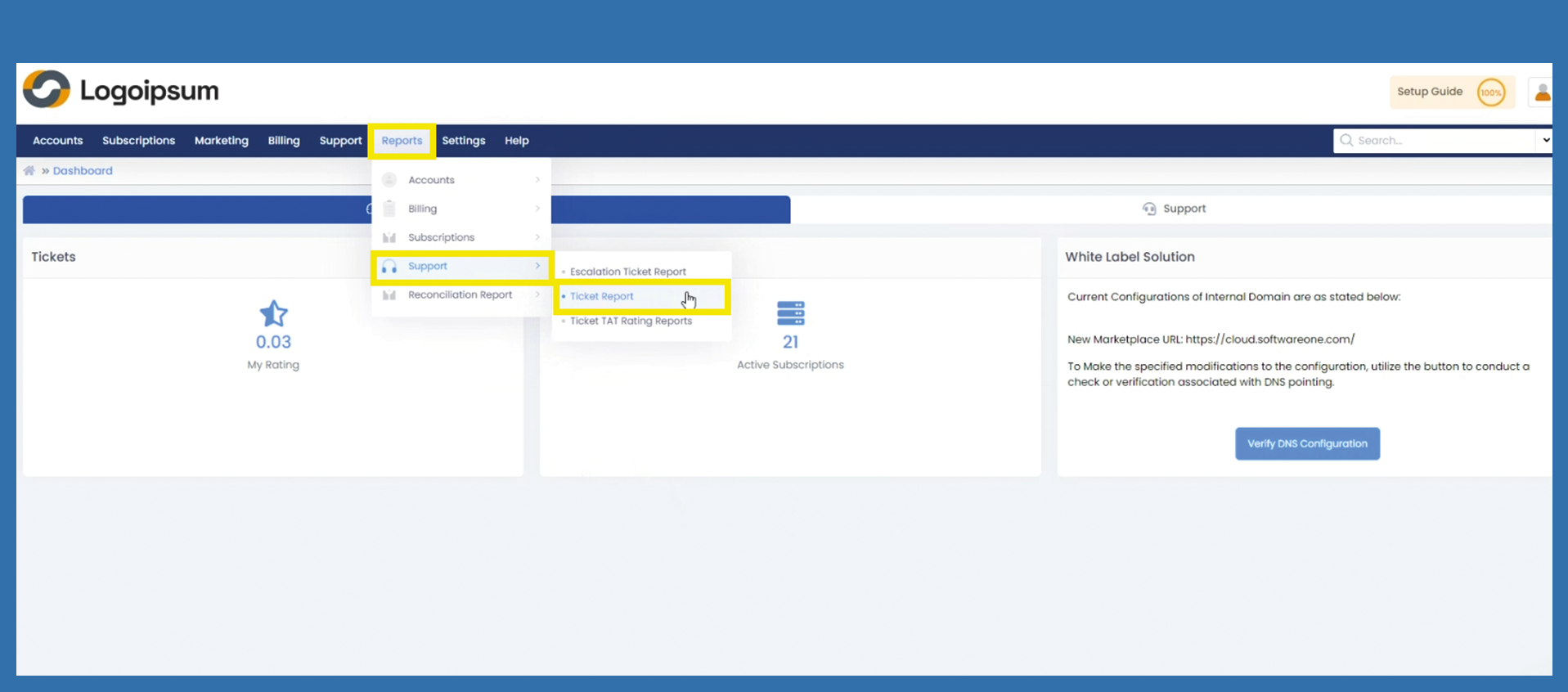
Would you like to analyze more information about your support tickets? Then you can do this under the following path:
Reports > Support > Ticket Report
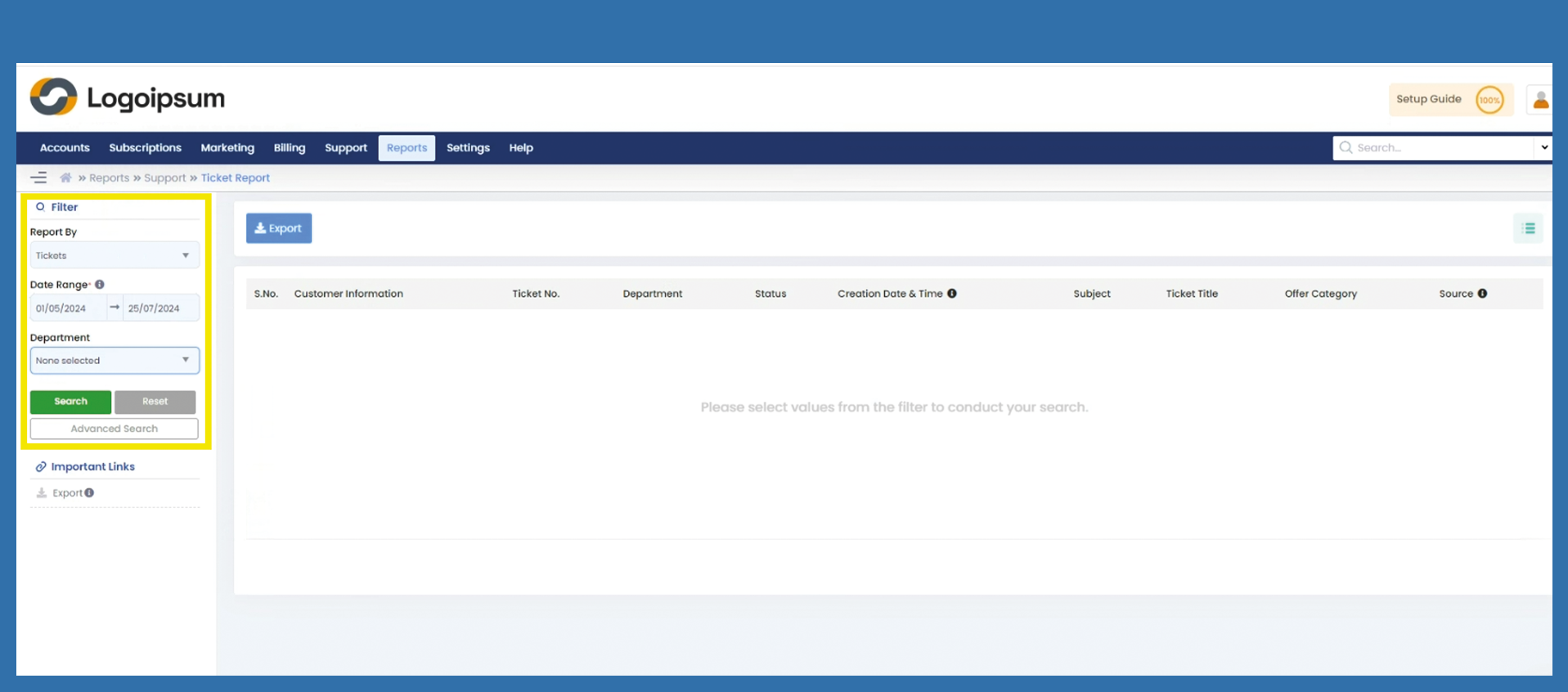
Use the Filter Section on the left-hand side and select whether you want to evaluate tickets or replies in the Report by field via dropdown. Enter the period from and to in the Date Range field. You can then filter tickets to a specific department by setting a check in the specific Department, but this is not a must. If you want to filter for more information, click on Advanced Search. Once you have set the filters accordingly, click on Search. All tickets with the previously selected filters will now be displayed.
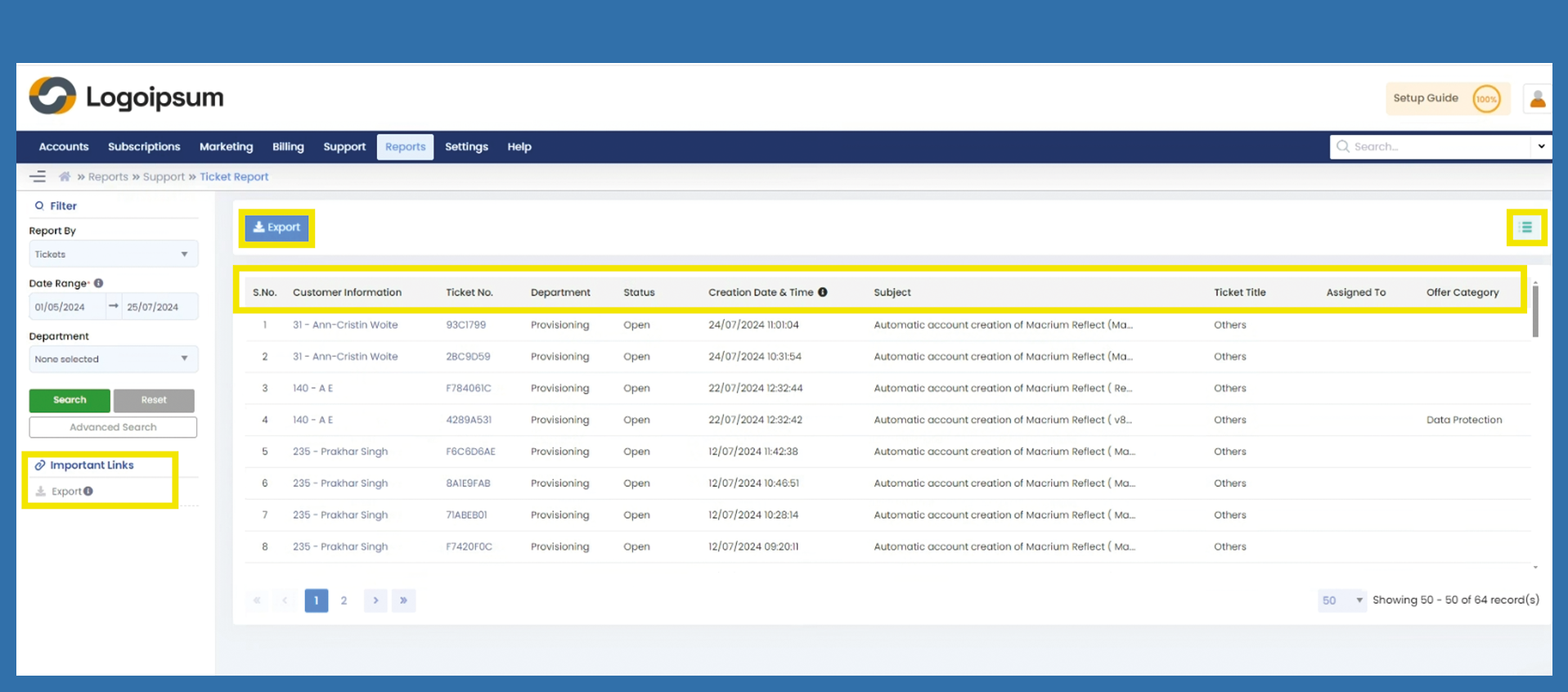
You can now view the most important information:
S.No.: is a variable number that changes while filtering
Customer Information: displays the customer who created the ticket.
Ticket No.: shows the number that was automatically assigned when the ticket was created.
Department: The department selected by the customer when the ticket was created.
Status: shows, for example, whether the ticket is open, answered or closed.
Creation Date / Time: The time at which the ticket was created by the customer.
Subject: Displays the subject that the customer entered when creating the ticket.
etc...
You can manage your headlines by clicking on the hamburger menu symbol on the upper right side. There you can mark the information you want to see displayed.
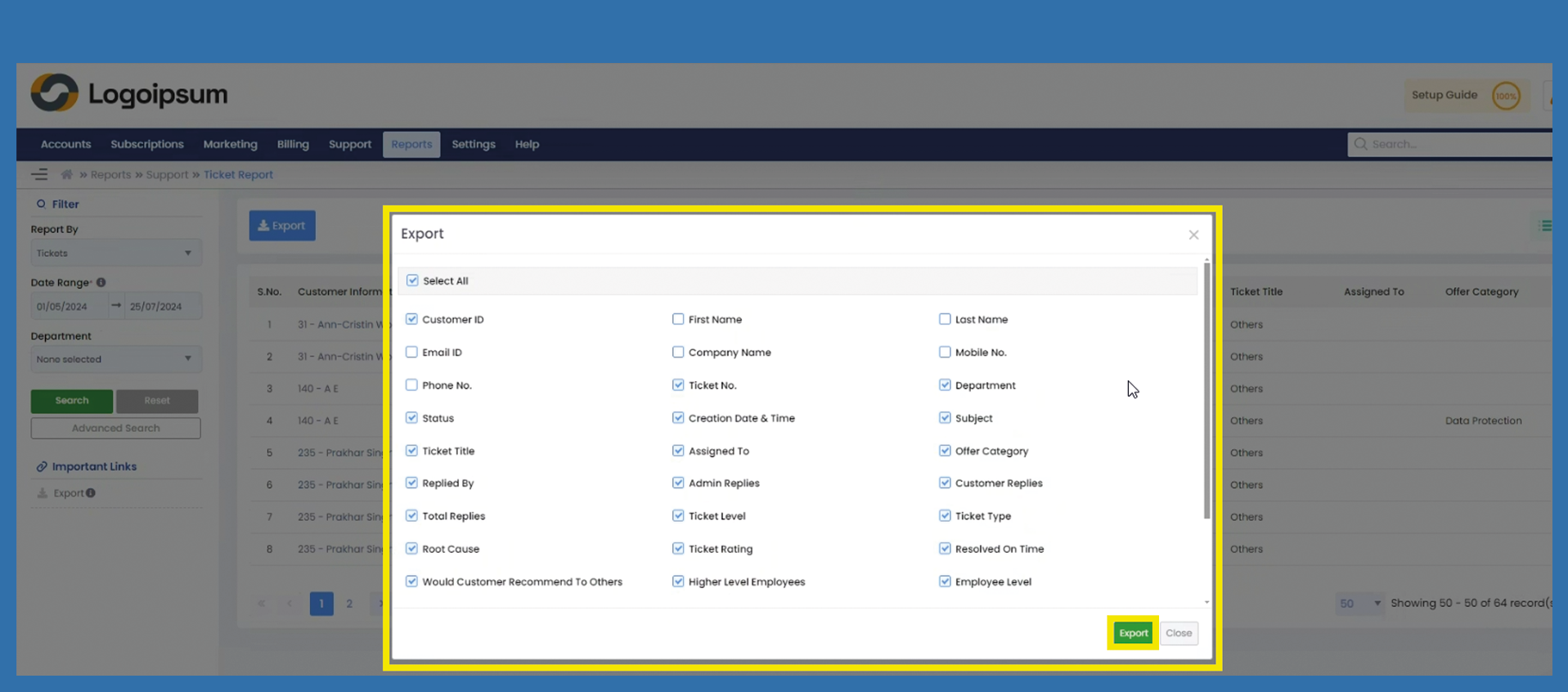
You can also export the filtered support tickets to an Excel file. Click on the blue Export button or on the corresponding link under Important Links.
A popup opens, from here you can select which data you would like to have displayed in addition to your support tickets.
Check or check off the respective box if you do not want the preset information in the evaluation.
If you check the box under Select All, you can select all fields at once or check off the box to deselect all fields.
Click on Export.