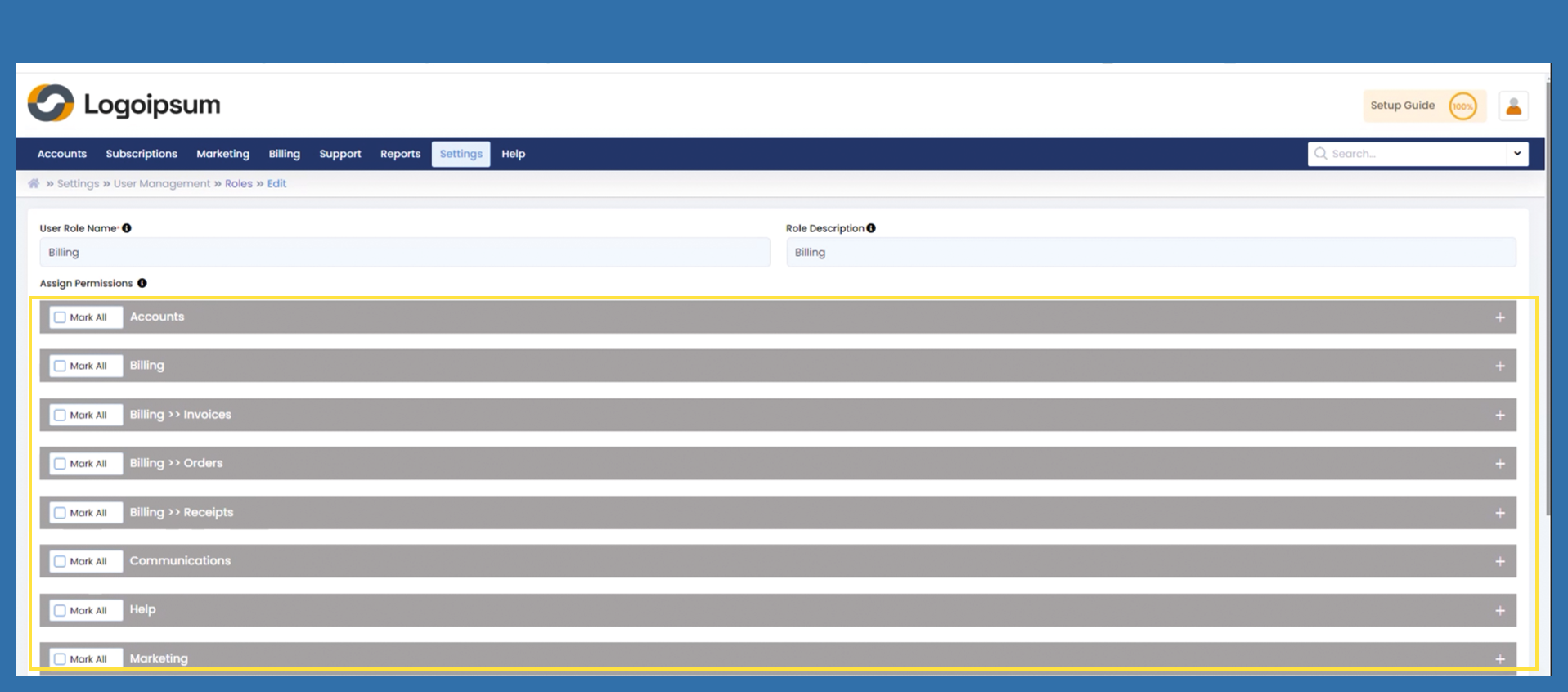
Settings >User Management > Roles
If you can already view predefined user roles, then these have already been preset by the Prianto Admin.
To create new user roles or edit existing roles, please use the following path:
Settings > User Management > Roles
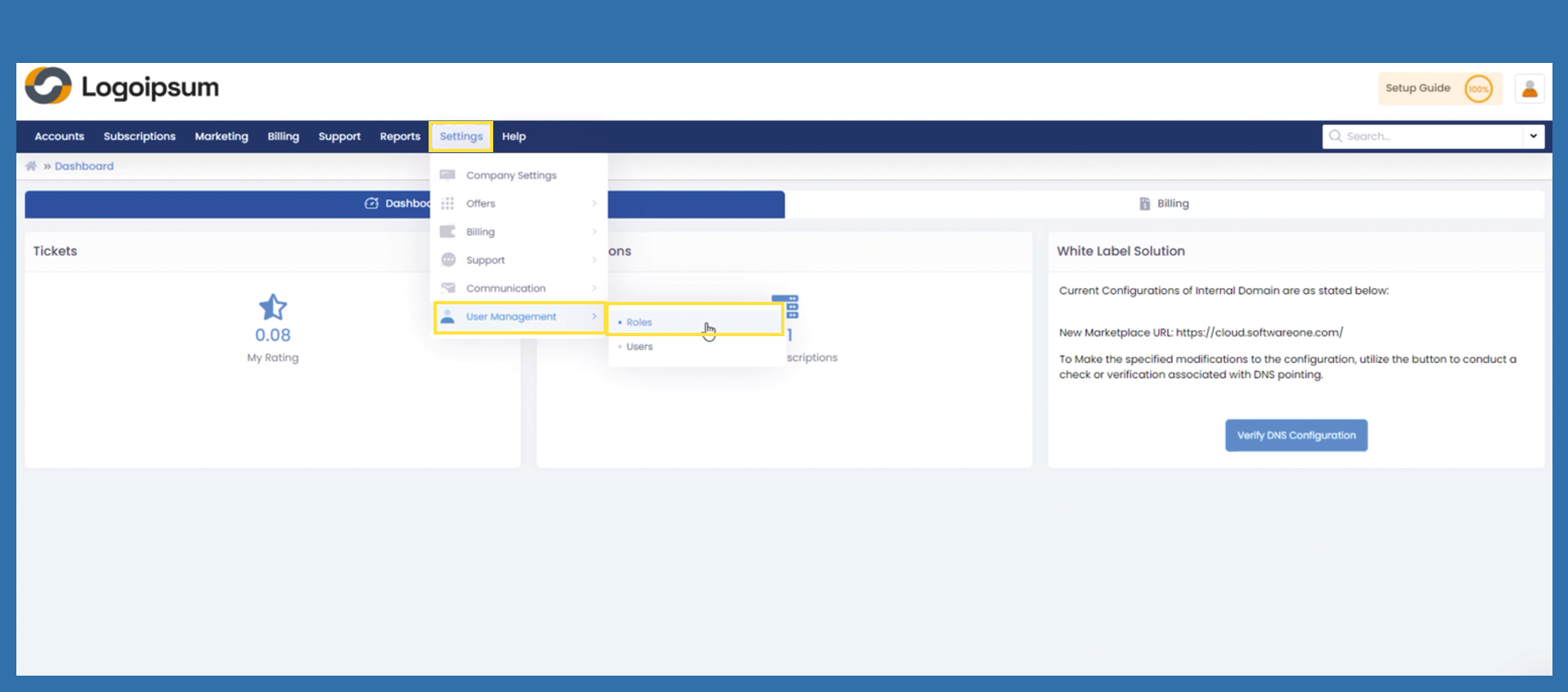
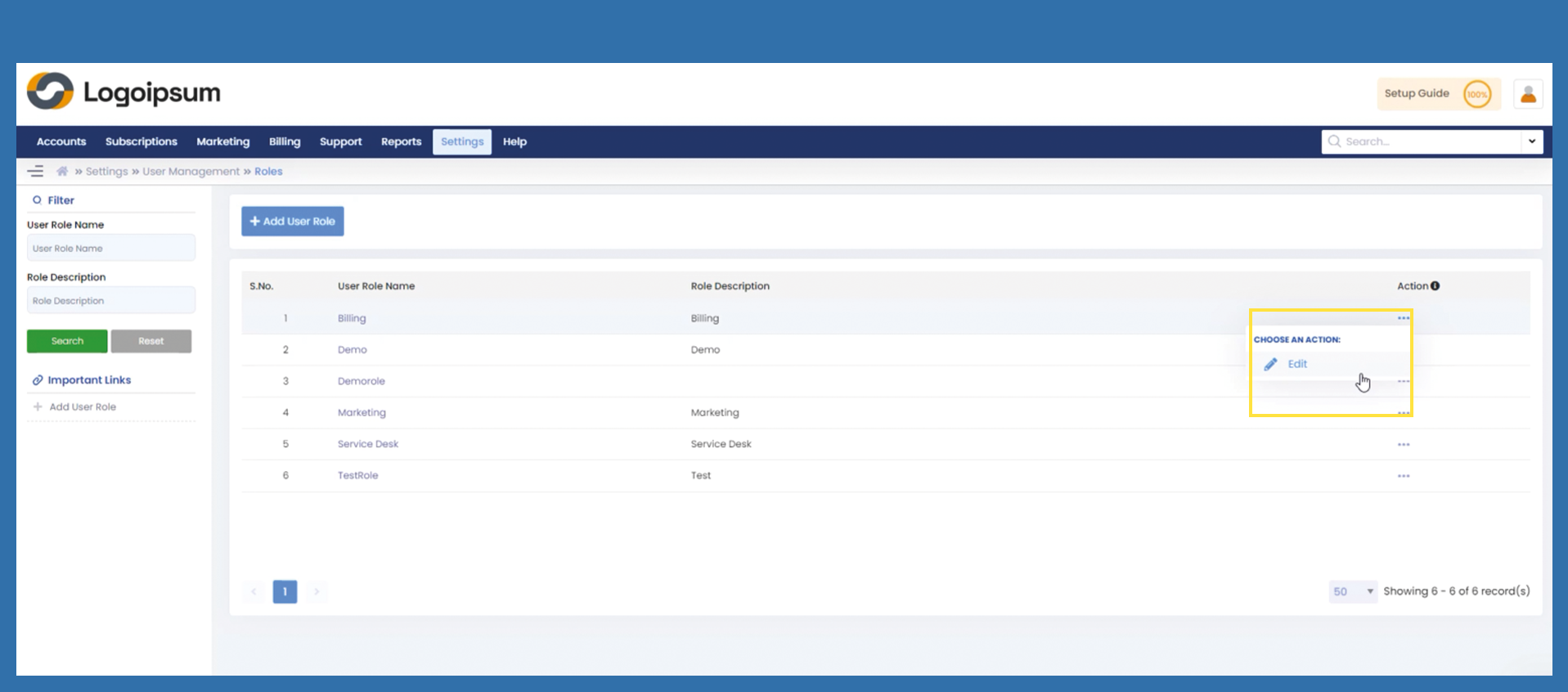
User Role Name is the name for the corresponding role, the associated Role Description field can show a description of the role mentioned above. The status of the respective role can be edited in the Action field.
To find a role you can use the filter section on the left. To add a new role, click under Imports links or on the blue +Add User Role button.
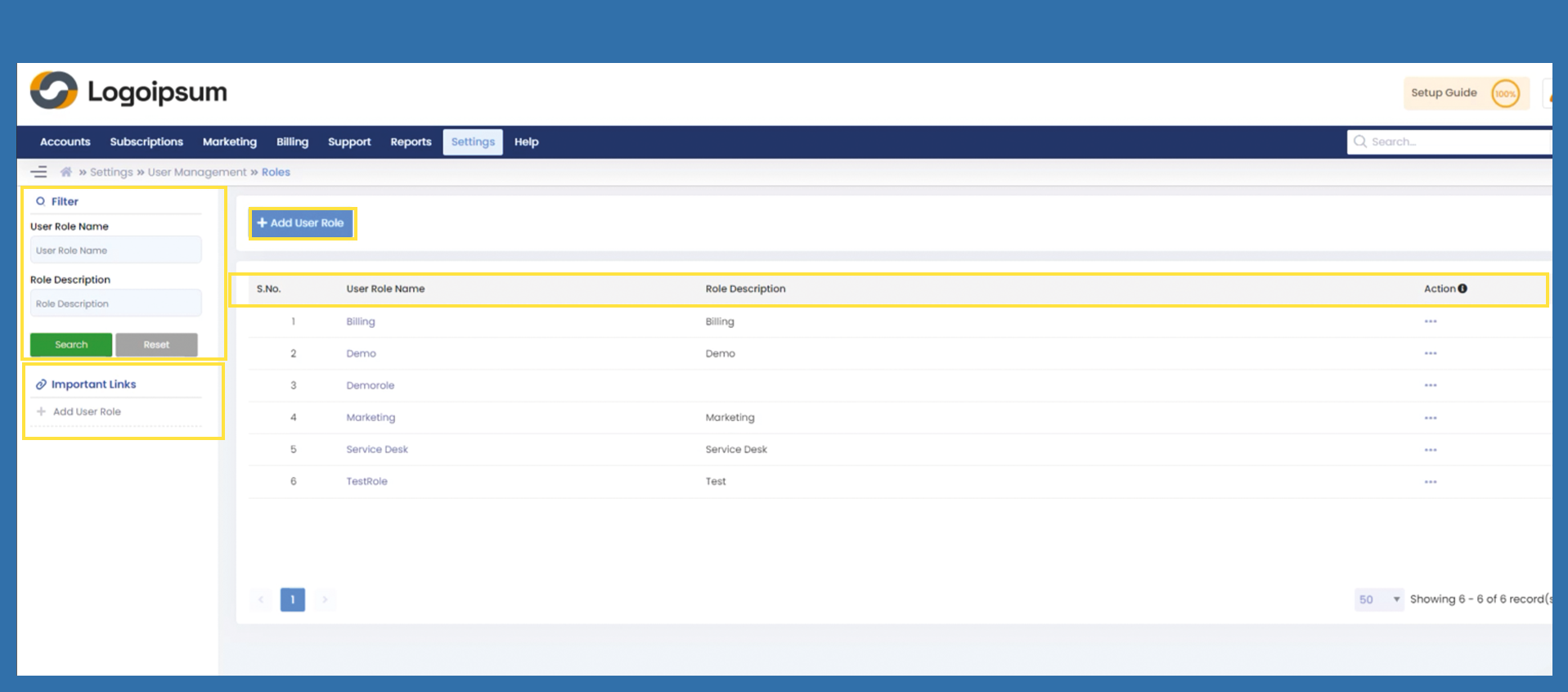
If you have already clicked on the +Add User Role button, the following screen will appear. Fill in the data using the explanation given above. If you would like to copy a role, use the Copy Form field to do this and select via dropdown which role you would like to copy from and then click on Save.
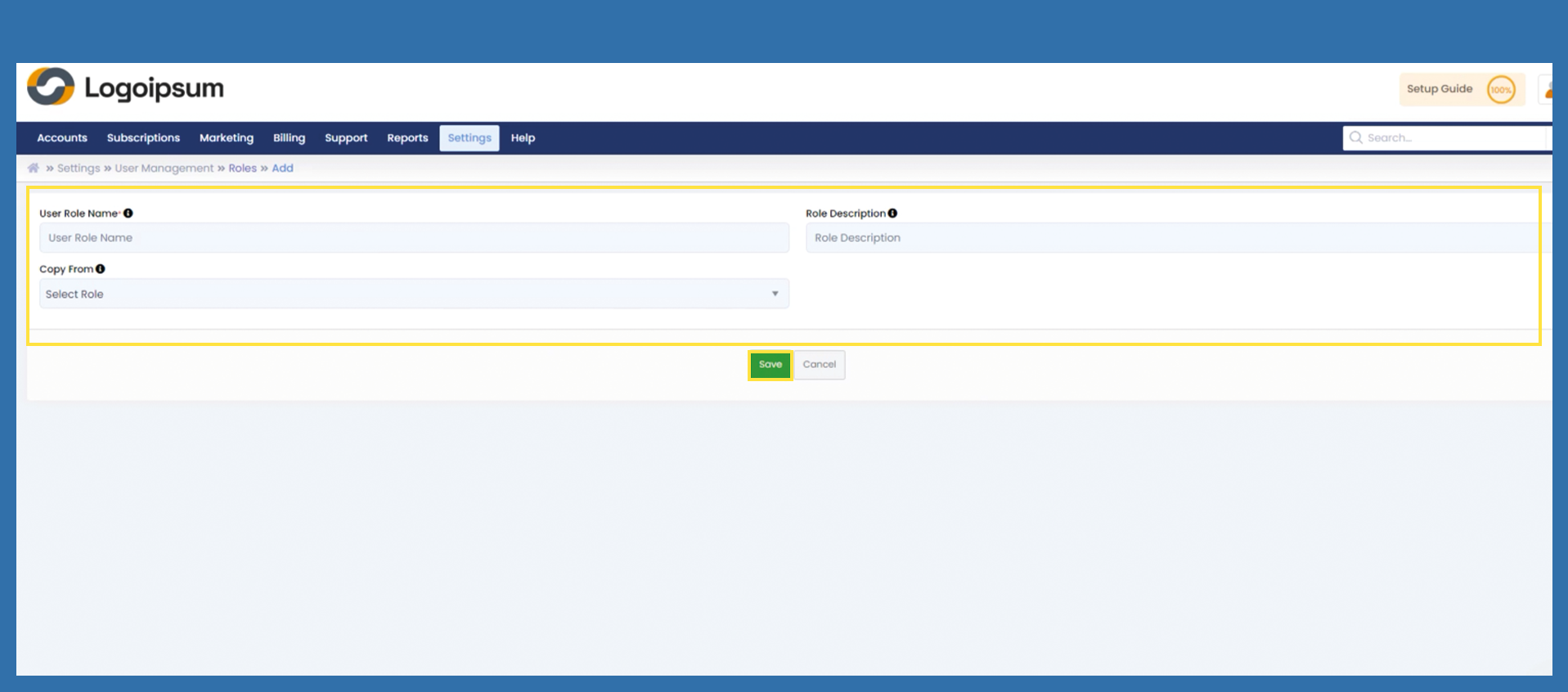
As soon as a new role has been created, you can click on the three dots under Action in the overview and edit the role accordingly under Edit. You can also edit all other roles in the overview in this way.
To assign the individual rights, click on the gray bar or on the plus at the end of the bar. Mark All to mark or unmark all rights for this area. Or select only individual rights by ticking the relevant right. Then click on Update to save your changes.