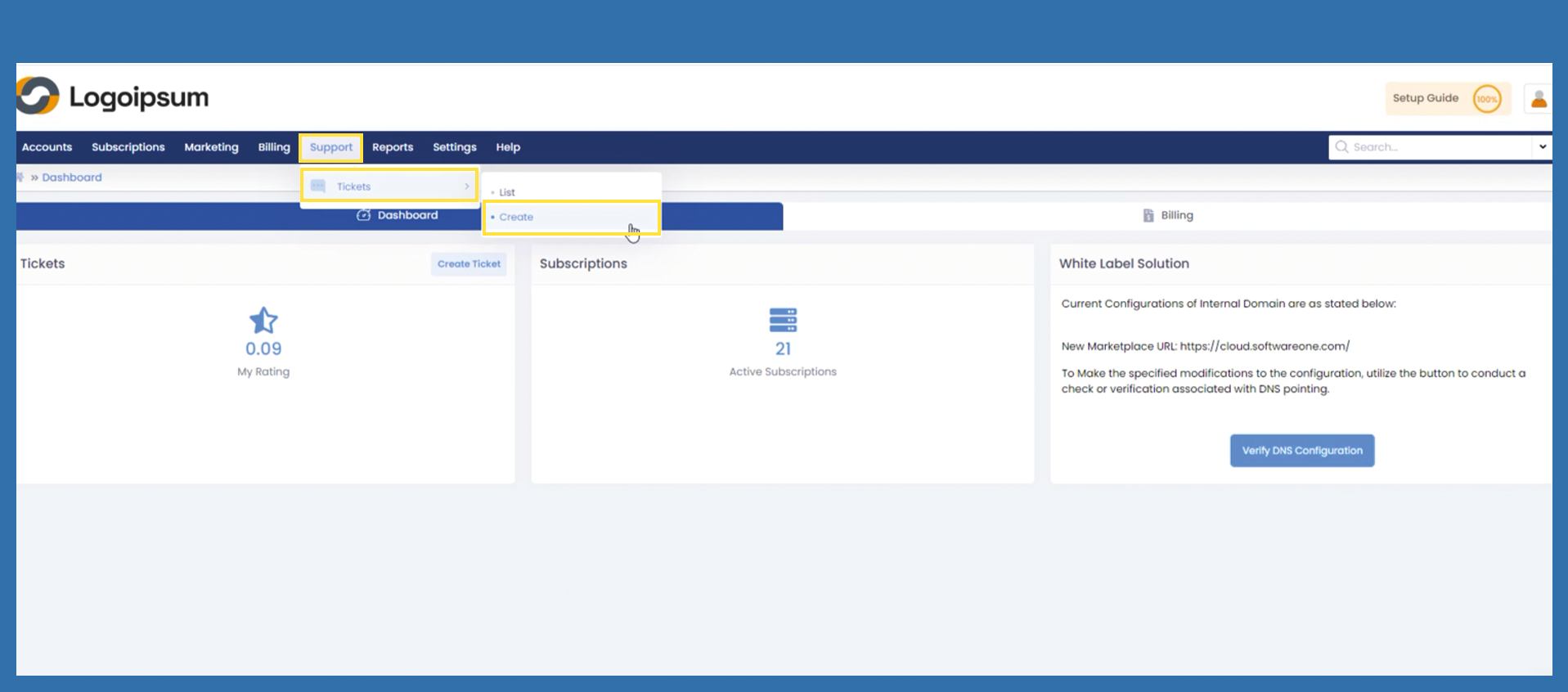
Support > Tickets > Create
You can create a ticket on behalf of the end customer.
As soon as the Customer ID / Username field is filled in, the communication is sent to the email address provided.
To create a Support Ticket, please follow one of the following path:
Support > Tickets > Create
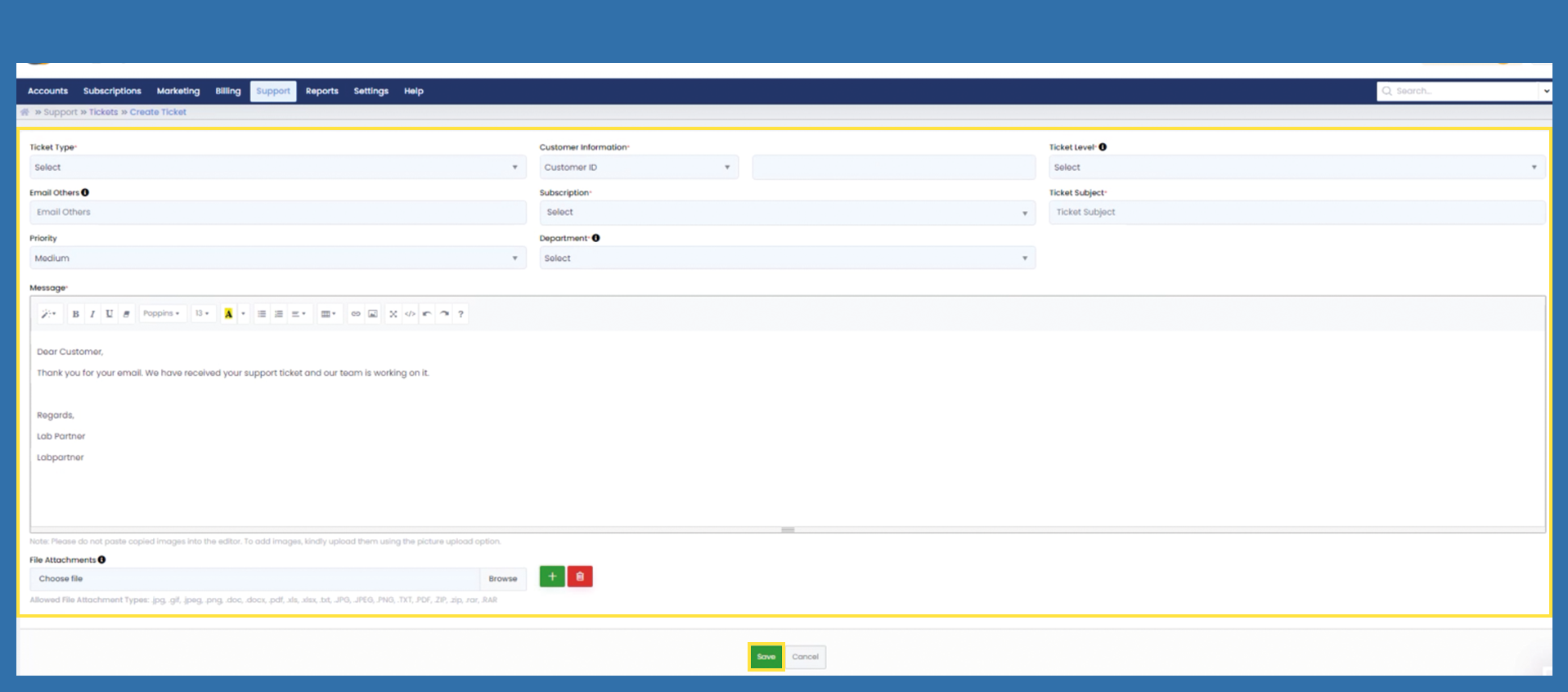
Ticket Type: Select the reason why you want to create a ticket, so the support can identify the problem quick and easy.
Customer Information: Here, you can give the corresponding ID or Username of the Partner/Customer, to whom the problem relates to. You can find the ID or Username under: Accounts > Customers > List or Accounts > Partners > List.
Ticket Level: Level 1 - All requests
Email Others: Any email address can be entered here if someone else needs to be informed.
Subscription: If the reason for the ticket relates to a specific subscription, the corresponding subscription can be selected wit the Subscription ID. You can find the Subscription ID by the following path: Subscriptions > All
Ticket Subject: Request/reason for the ticket in short form
Priority: Set a priority to clarify how important this problem is to be solved:
- Low - Should be fixed if time permits but can be postponed.
- Medium - A core functionality that your product is explicitly supposed to perform is compromised.
- High - An urgent problem that blocks the system use until the issue is resolved.
Department: Select the Department this problem is addressed to.
Message: Describe the problem detailed, so the Support can help quickly. Please give any reference number you have, so its easier to track the problem.
File Attachments: Load up any helping or further documentation, to simplify problem solving. Click on Browse, to choose and upload a file. To add further files, click on the green Button with + and then on Browse in the new part that opens. To delete a file you don't want to sent anymore, click on the red Trashcan button.
To sent the Ticket, click Save.